September 1, 2026
13 min read
Can You Schedule Posts on Instagram? a Complete Guide
Can You Schedule Posts on Instagram. Yes, you can schedule posts on Instagram. Learn native and third-party scheduling steps, limits, best practices
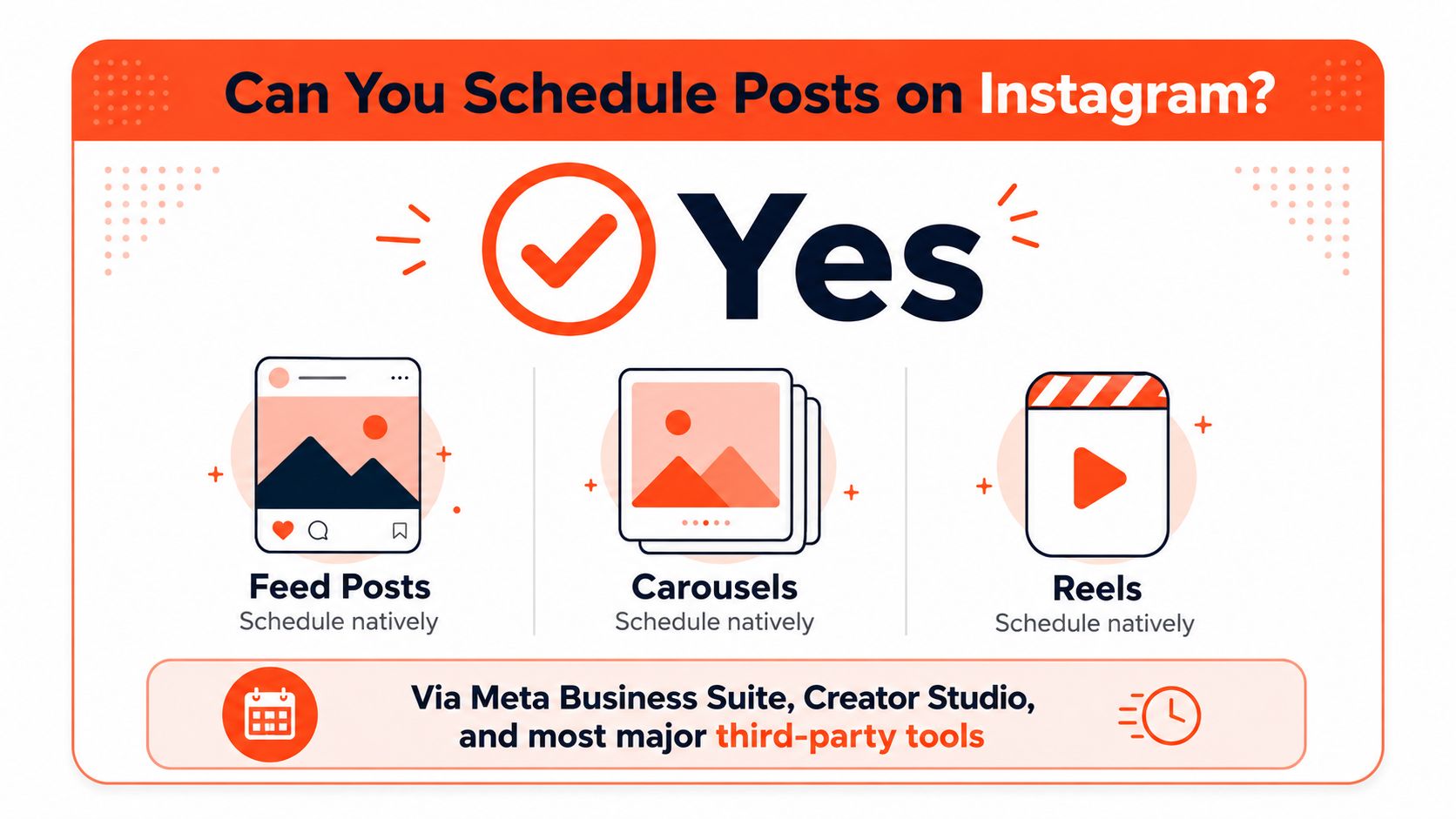
Yes. Public Instagram accounts can natively schedule feed posts, carousels, and Reels up to 75 days ahead, with a limit of 25 scheduled posts per day, but Stories still can't be scheduled natively.
Can you schedule posts on Instagram and still preserve the parts of publishing that need a human touch? That's the question most step-by-step guides skip. Scheduling solves a real operational problem, but it doesn't cover every format, collaboration, or fast-moving campaign moment.
Instagram scheduling has moved steadily into first-party tools. Meta introduced post scheduling through an API in 2018, added scheduling through Facebook Creator Studio in 2020, and rolled out native in-app scheduling for professional accounts in October and November 2022. The native feature supported photos, Reels, and carousels, with a planning window of 75 days (TechCrunch's coverage of Instagram's scheduling rollout).
For a social team, that shift matters. You can build a reliable feed cadence without keeping a laptop open at publishing time, yet you still need a separate plan for Stories, collaborative posts, live engagement, and content that depends on what happens that day.
Table of Contents
- Can You Schedule Posts on Instagram
- How to Schedule Instagram Posts Natively
- Best Third-Party Schedulers Compared by Use Case
- Limits, Permissions, and Common Pitfalls
- When Scheduled Posting Is the Wrong Choice
- Building a Repurposing Pipeline With WaveGen.ai
- Best Practices, Troubleshooting, and a Simple Workflow
Can You Schedule Posts on Instagram
Yes, but the answer depends on the account type and format. Instagram supports native scheduling for feed posts, carousels, and Reels. Public accounts can generally access the feature, while private personal accounts may not, so account visibility and eligibility should be checked before troubleshooting the app, as outlined in SocialBee's current scheduling guide.
Native scheduling works well for evergreen education, campaign reminders, product announcements, and repurposed Reels. A creator or social manager can prepare the media, caption, tags, and publishing time in advance, then review the queue instead of relying on memory at the exact publishing moment.
What Instagram scheduling covers
The native workflow supports three core feed formats:
- Feed posts: Schedule a single image or video for automatic publishing.
- Carousels: Queue multiple images or mixed media as one feed publication.
- Reels: Prepare and schedule short-form video without opening the app at the publishing time.
The trade-off is format coverage. Stories still can't be scheduled natively, so countdowns, polls, question stickers, replies, and day-of updates require manual publishing or another workflow. Collaborative posts and fast-moving moments also benefit from real-time coordination, particularly when a partner must accept an invitation or the creative depends on current events.
The access question has changed
Older tutorials often describe native scheduling as limited to Business or Creator accounts. Current guidance indicates that public accounts may have access, while private personal accounts remain excluded. A public solo educator, consultant, or creator may therefore qualify without changing to a formal business profile.
For teams, the decision is operational. Native tools reduce moving parts and keep publishing close to Instagram. Third-party platforms can add calendars, approvals, analytics, and cross-network publishing, but permissions and supported formats vary. A practical pipeline creates or repurposes assets in tools such as WaveGen.ai first, reserves the scheduler for approved evergreen content, and keeps Stories, collaborations, live engagement, and time-sensitive posts in a human-controlled queue. That division preserves convenience without treating every format as interchangeable.
How to Schedule Instagram Posts Natively
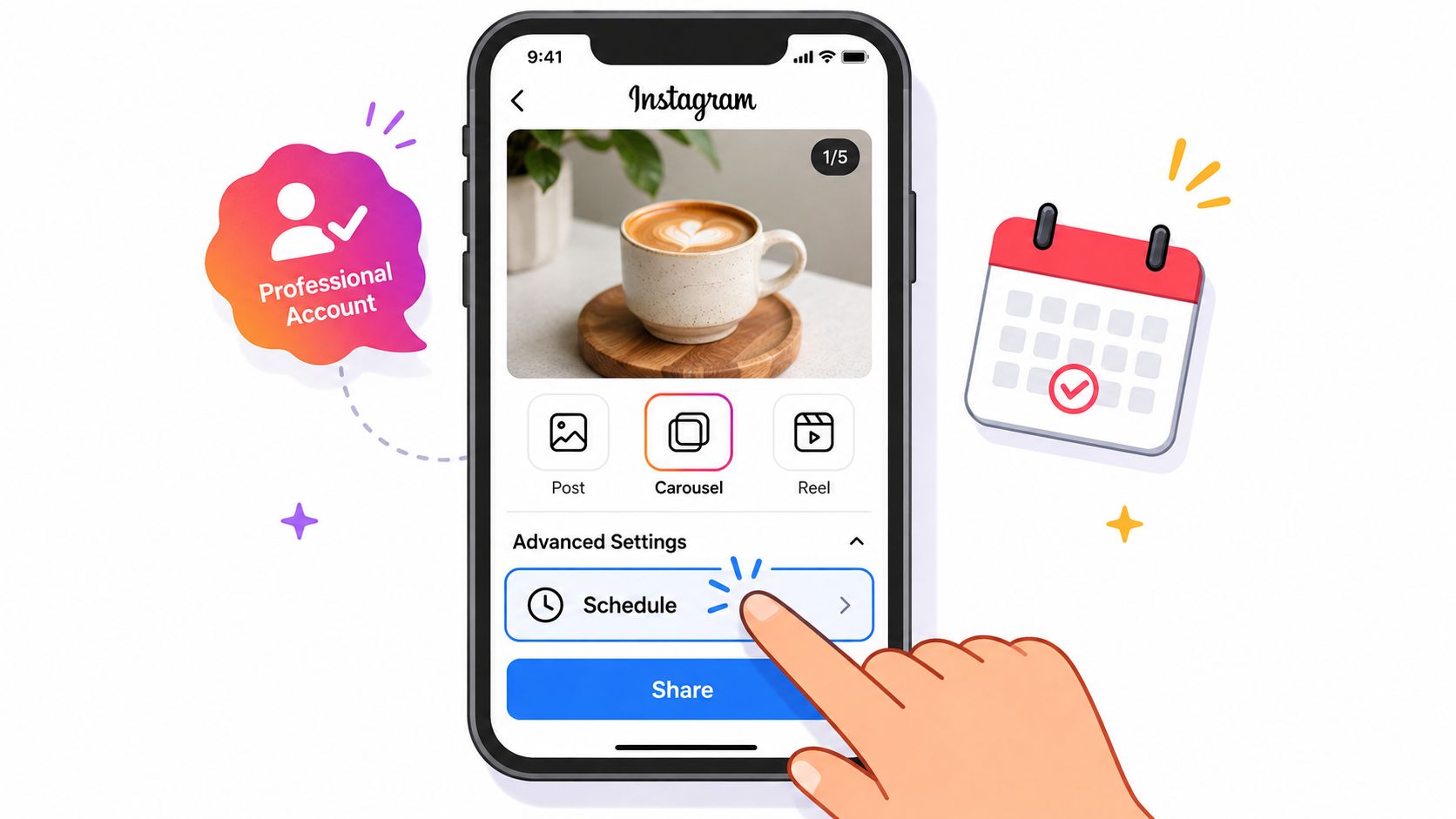
The Instagram app is the quickest route for a single public account. Start by creating a photo post, carousel, or Reel as usual. Add the caption and other publishing details, then open Advanced settings on iOS or More options on Android.
The in-app process
Use this sequence:
- Create the content: Tap the create button, choose Post or Reel, and select the media. For a carousel, choose the multiple-media option before continuing.
- Finish the draft: Write the caption, add relevant tags or location details, and check the cover image for a Reel.
- Open the scheduling controls: Find Advanced settings or More options on the final publishing screen.
- Turn on scheduling: Enable Schedule this post or the equivalent Reel scheduling option.
- Choose the time: Select the future date and exact publishing time, then confirm the schedule.
- Verify the queue: Open your profile menu and find Scheduled content. A post that appears there is queued. A post that remains only in drafts isn't scheduled.
That final check catches many avoidable mistakes. I treat the Scheduled content screen as the source of truth, not the confirmation toast that appears after tapping Schedule. If the post isn't visible in the queue, assume it won't publish until you resolve the issue.
For more detail on planning from a desktop workflow, Sup Growth's guide to computer Instagram posting tips is useful when the mobile app isn't the best fit.
Meta Business Suite for team workflows
Meta Business Suite is usually the better first-party option when multiple people review content. Connect the Instagram account, open Content or Planner, select Create post, and choose the Instagram destination. Add the media and caption, change the publishing setting from immediate publishing to Schedule, select the date and time, and confirm.
The Planner view gives teams a calendar-level view of queued content. Use it to spot crowded days, empty stretches, duplicated topics, or a campaign sequence that no longer makes sense. It's also where a manager can make adjustments without asking everyone to reopen individual drafts.
Creator Studio instructions can cause confusion because older workflows have been folded into Meta's broader publishing ecosystem. If you're following an old tutorial, confirm that the current account is connected in Business Suite and that any linked Facebook Page required for cross-posting remains published. A successful draft isn't the same as a queued publication, so always verify the item in the relevant Scheduled or Planner view.
Best Third-Party Schedulers Compared by Use Case
A flat list of scheduler features doesn't help much. The better question is what problem your team is trying to solve before Instagram publishing begins.
| Category | Best For | Examples | Key Trade-Off | Pricing Model |
|---|---|---|---|---|
| All-in-one platforms | Creators and brands managing several networks | Later, Buffer, Hootsuite, Sprout Social | Broader features can add complexity, and advanced collaboration may require a higher tier | Subscription tiers, often based on channels, users, or features |
| Repurposing-first tools | Teams turning long-form content into feed posts and Reels | WaveGen.ai and similar repurposing platforms | Generated drafts still need editorial review, and AI plans may limit production volume | Subscription tiers, commonly varying by usage or generation capacity |
| Agency-oriented suites | Agencies handling clients, approvals, reporting, and bulk queues | SocialPilot, Sendible, Agorapulse | Per-seat access, client permissions, and reporting features can increase administrative overhead | Plans commonly scale by users, brands, profiles, or client workspaces |
All-in-one scheduling platforms
Later, Buffer, Hootsuite, and Sprout Social fit teams that need a shared calendar across multiple networks. They're useful when a social manager wants approvals, analytics, link-in-bio features, and channel-level planning in one workspace.
The trade-off is operational weight. A solo creator publishing to one Instagram account may find the additional calendar and reporting layers unnecessary. A small marketing team with several active channels may consider those same features essential.
Repurposing-first workflows
A repurposing tool addresses the bottleneck before scheduling: the queue can't fill itself. A long-form article, podcast, webinar, or video becomes a set of captions, carousel concepts, and Reel drafts, which a manager then reviews before sending approved content to a scheduler.
If your priority is to automate Reels publishing, check whether the tool supports the exact Reel workflow and account connection you use. Publishing support alone doesn't guarantee that every audio, collaboration, or interactive setting will carry over.
For a deeper comparison of planning tools, see this guide to scheduling apps for social media. Match this category to a content-rich team that has ideas and source material but lacks enough production time.
Agency-oriented suites
SocialPilot, Sendible, and Agorapulse are designed around client work, reporting, permissions, and repeatable approvals. They make more sense when several brands need separate calendars and a client or account lead must approve content before publication.
Choose an all-in-one platform for channel coordination, a repurposing-first workflow for content production, and an agency suite for client governance. The scheduler should fit the approval process, not just the publishing button.
Limits, Permissions, and Common Pitfalls
Instagram's hard limits are easy to miss when you're planning a large content backlog. Current guides report a maximum scheduling window of 75 days and a daily limit of 25 posts per account (How Sociable's scheduling instructions).
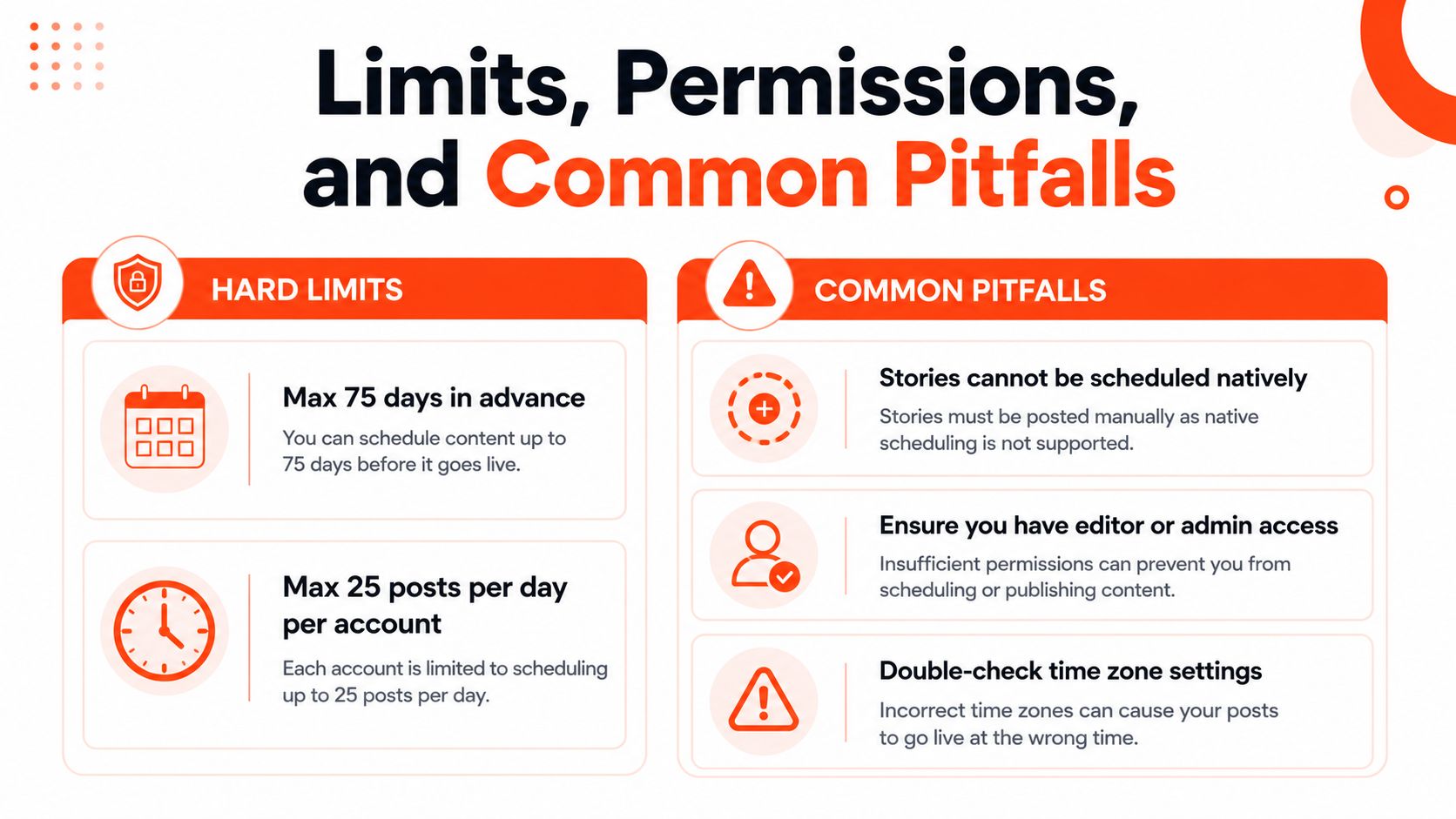
Those caps are generous for ordinary weekly planning, but they affect launch calendars, high-volume publishers, and agencies managing multiple brands. A long backlog doesn't remove the need for periodic review, especially when campaign details, availability, or brand priorities change.
Format and account restrictions
Stories remain the largest native gap. Feed posts, carousels, and Reels can enter the native queue, but Stories need a manual or separate publishing process. That means a feed campaign may be scheduled while its supporting Story sequence still requires someone to be available at the right time.
Public-account access has also changed, so don't rely on old instructions that assume every account needs a Business or Creator label. Private personal accounts still can't use native scheduling, and an account that has recently changed status may need to reconnect before the scheduling controls appear.
Permission and publishing failures
Business Suite teams should audit who can create, edit, approve, and publish. A person may be able to view a page without having the role needed to publish to its connected Instagram account. Role mismatches can look like a missing feature or a failed queue rather than a clear permissions warning.
Common operational failures include:
- Expired connections: Re-authenticate accounts when a token or platform connection expires.
- Time-zone errors: Confirm the account's displayed time when people schedule across regions.
- Unfinished accessibility details: Review alt text and media descriptions before the item enters the queue.
- Missing first comments: If hashtags or context belong in a first comment, confirm whether the chosen tool can publish it as intended.
- Outdated tutorials: Ignore old instructions that cite different limits. Check the current controls in your account and Planner.
Verification rule: Queue one simple test post before committing a full calendar, then review scheduled content every week.
Confirm the account's public or professional eligibility, refresh the Meta connection, check the date window and daily cap, and inspect the Planner after every bulk scheduling session. A visible queue is evidence of scheduling. A saved draft is not.
When Scheduled Posting Is the Wrong Choice
Automation isn't automatically better publishing. It buys consistency and frees the team from repetitive timing tasks, but it can remove the context that makes some Instagram formats work.
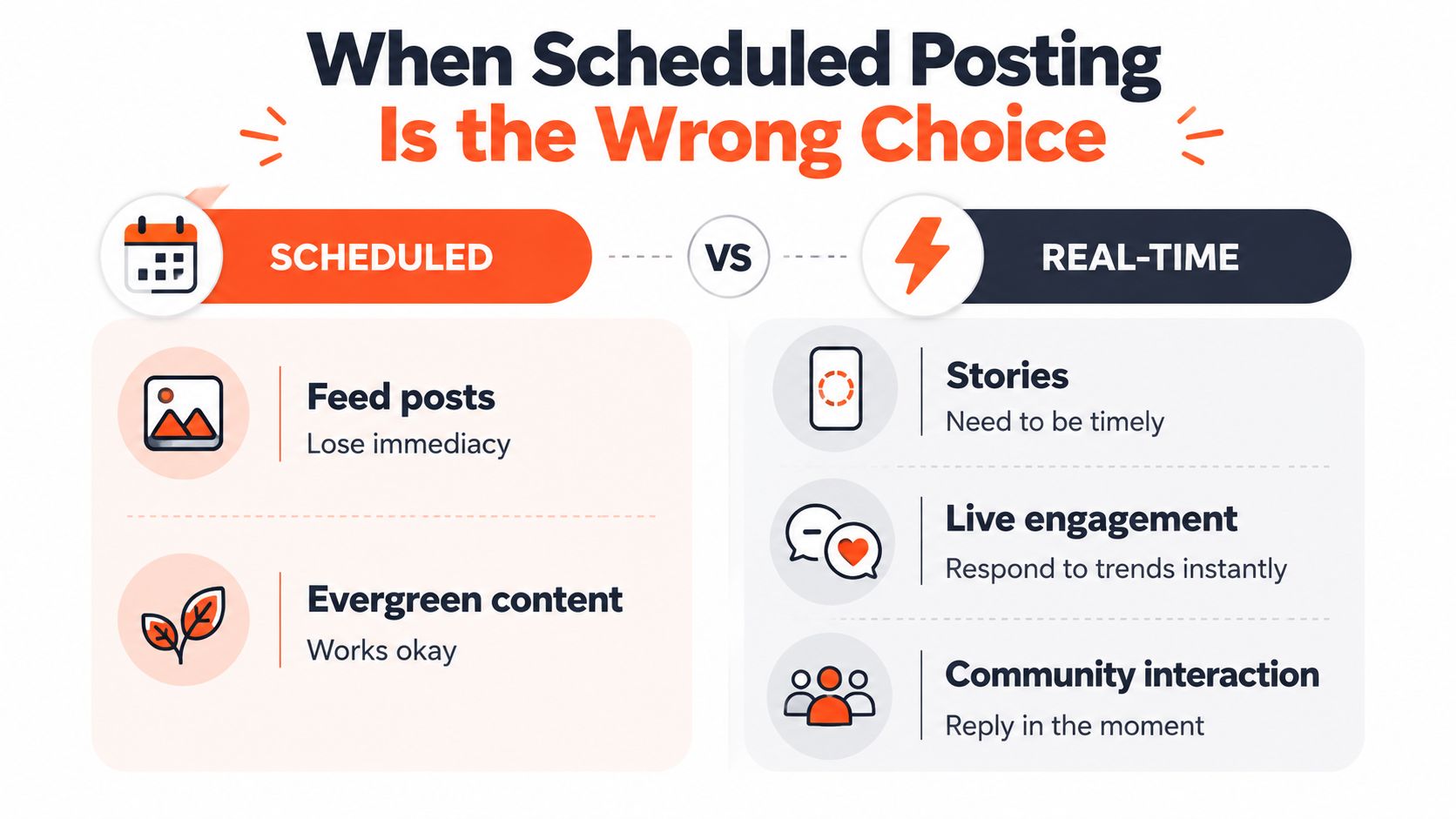
Stories are the clearest example. A poll, countdown, question sticker, or reply often depends on what the audience is discussing that day. Scheduling that interaction too far ahead can produce a polished asset that feels disconnected by the time it appears.
Keep a human in the loop
Product launches and reactive campaigns need flexibility. Inventory can change, a competitor can alter its offer, or breaking news can make yesterday's caption inappropriate. A scheduled post won't understand that context unless someone reviews and adjusts it.
Collaborative posts and partnership Reels also deserve manual attention. Co-authors may need to approve the asset, confirm tagging, or change the cover before publication. A queue can handle timing, but it can't replace the relationship and approval work around a collaboration.
Live engagement is another separate job. A scheduled feed post may publish successfully, but comments, replies, Story reshares, and community questions still need active management. Real-time publishing works best when the content depends on immediate audience participation or a trend that may change quickly.
Use this decision rule:
- Queue evergreen education: Tutorials, explainers, carousels, and repurposed ideas are strong scheduling candidates.
- Publish Stories manually: Keep polls, countdowns, replies, and context-heavy updates live.
- Post launches with flexibility: Schedule only the parts that won't become inaccurate if the situation changes.
- Handle trends and collaborations live: Keep a human involved when timing, tagging, or approval affects the outcome.
The right system is usually mixed. Scheduled feed content provides structure, while manual publishing protects immediacy and format coverage.
Building a Repurposing Pipeline With WaveGen.ai
The scheduler isn't usually the biggest bottleneck. Maintaining a steady supply of approved ideas, visuals, captions, and short-form scripts is a common struggle. A repurposing pipeline solves that upstream problem, then hands finished drafts to the scheduler.
Start with one source asset, such as a blog post, newsletter, podcast transcript, YouTube video, or webinar recording. A platform such as WaveGen.ai can turn that source into draft social assets, including carousel text, short-video concepts, quote cards, captions, hashtags, and platform-specific variations. The value comes from starting with the brand's own ideas rather than asking a tool to produce disconnected generic posts.
A practical production handoff
The workflow should look like this:
- Choose the pillar asset: Select one substantial piece that contains several useful arguments, examples, or teaching points.
- Extract content angles: Identify hooks, objections, quotes, process steps, and questions that can stand alone.
- Create format drafts: Turn those angles into carousel slide text, Reel scripts, feed captions, and prompts for live Stories.
- Review editorially: Check accuracy, tone, visuals, claims, calls to action, and accessibility details.
- Push approved assets to the queue: Send the final versions to Meta Business Suite or a third-party scheduler.
- Publish and engage: Let the scheduler handle feed timing while a person handles comments and real-time formats.
Teams that need a clean source for video text can also use a guide to how to get Instagram transcripts before repurposing spoken content. The transcript becomes raw material, not a finished caption, so an editor should still remove repetition and confirm the intended message.
One pillar piece can reasonably support a week of scheduled content, including several feed or carousel posts, a small set of Reels, and prompts for Stories. The exact output depends on the source length, brand voice, and review standards. The important design choice is that WaveGen.ai populates the queue while a human approves the content and Instagram handles publication.
For additional workflow ideas, review these repurpose examples. Keep the scheduler downstream. It should distribute approved content, not decide what the brand believes.
Best Practices, Troubleshooting, and a Simple Workflow
A dependable Instagram system separates content production, queue management, and live engagement. Schedule feed content when it's complete and durable, but keep enough capacity for Stories, timely updates, replies, and campaign changes.
Use your Instagram audience insights to choose publishing windows rather than copying a generic “best time to post.” Keep captions readable before the More break, review the opening line on mobile, and treat hashtags as a deliberate part of the topic strategy rather than a block of unrelated terms.
A weekly operating rhythm
- Monday, plan: Choose the week's themes, formats, and calls to action.
- Tuesday, produce: Batch the visuals, captions, carousels, and Reel drafts.
- Wednesday, review: Check claims, links, tags, covers, alt text, and the Planner calendar.
- Thursday through Saturday, engage: Respond to comments, publish Stories manually, and adapt to live conversations.
- Sunday, learn: Review saves, shares, replies, profile actions, and content that should be repurposed.
If scheduling fails, work through the basics before rebuilding the entire calendar. Confirm the account's eligibility, reconnect Instagram in Meta Business Suite, update the app, and check whether the post falls within the scheduling window and daily limit.
Troubleshooting order: Account access first, connection second, content settings third, queue confirmation last.
For a more detailed operating process, use this guide to how to schedule social media posts. The core habit is simple: test with one post, inspect the queue, and audit scheduled content regularly instead of trusting an old tutorial or a single confirmation message.
WaveGen.ai turns a blog post, newsletter, podcast script, or video transcript into on-brand Instagram captions, carousels, short videos, and other social drafts that can move into your scheduling workflow. Visit WaveGen.ai to see how its repurposing and distribution tools can help you keep the queue supplied while your team retains final editorial control.
schedule instagram posts
instagram scheduling
meta business suite
social media workflow
instagram tools
Turn this kind of writing into a week of social content.
Paste a blog post, newsletter, or rough draft — WaveGen turns it into publish-ready carousels, captions, and slideshows for every channel.
No credit card · First posts in 2min