September 27, 2026
15 min read
How to Create an Automated Instagram Post Workflow
Build an automated Instagram post system step by step: pick tools, connect the API, format Reels and feed posts, and troubleshoot common scheduling errors.
The popular advice is simple: publish natively, avoid automation, and Instagram will reward the extra effort. That advice confuses scheduled publishing with the risky automation that imitates users, manipulates engagement, or follows accounts at scale. A well-built automated Instagram post workflow can protect consistency, preserve human judgment, and make timing easier to test, provided it uses Instagram's approved publishing path.
The core questions are more practical. Do scheduled posts underperform native uploads? What happens when an API quota breaks a carefully batched queue? Which formats should you prepare first, and how do you find a posting time that fits your audience instead of copying a generic chart? The answers sit in the operating details, not in the word “automation” itself.
Table of Contents
- Why Scheduling Your Posts Does Not Hurt Your Reach
- Choosing the Right Instagram Scheduling Tool for Your Situation
- Connecting Your Instagram Account the Right Way
- Creating and Formatting Content for Feed Posts Carousels and Reels
- When to Schedule and How to Find Your Best Posting Times
- Troubleshooting Common Instagram Automation Problems
- Your Weekly Automated Instagram Workflow
Why Scheduling Your Posts Does Not Hurt Your Reach
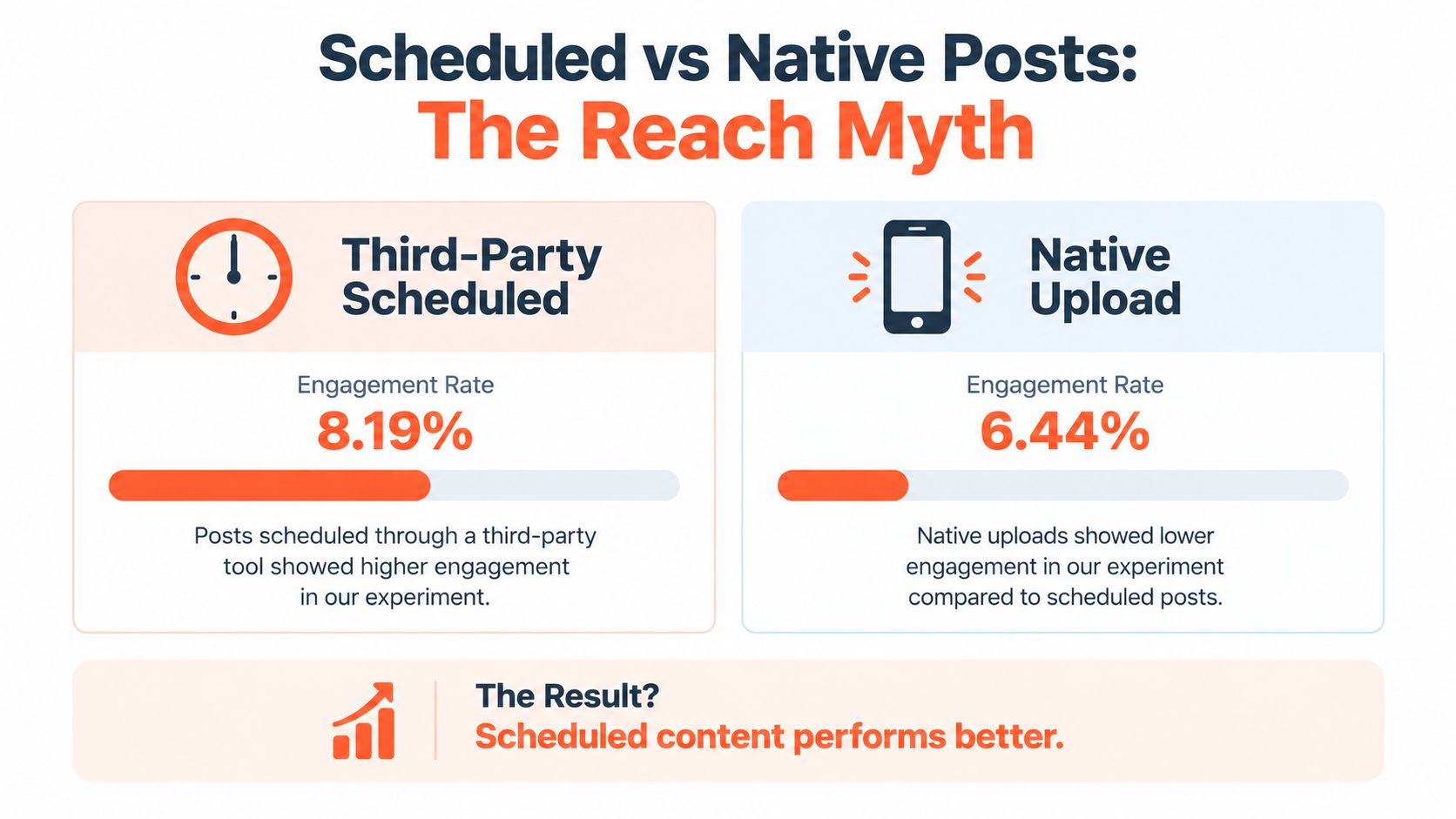
Instagram does not appear to reduce reach just because an approved scheduler publishes a post. In one experiment, scheduled posts recorded an 8.19% engagement rate versus 6.44% for native posts, although that result does not prove every scheduling tool will perform better. It does challenge the assumption that third-party publishing automatically suppresses distribution. The experiment on third-party Instagram scheduling explains the methodology and context.
The distinction is between automating distribution and automating behavior. Distribution automation prepares media, sets a time, and publishes through an approved connection. Behavior automation mass-follows, unfollows, likes, comments, scrapes, or manufactures engagement. The first removes repetitive administration. The second attempts to manipulate relationships and signals used to assess account quality.
What approved automation changed
Professional accounts gained practical scheduling options when Meta introduced official publishing pathways that let software publish through approved APIs instead of manual login sessions. By 2026, major scheduling platforms commonly supported photos, videos, carousels, Stories, and Reels, although format support still varies by tool and account type. The history and mechanics of Instagram API publishing provide useful background.
A calendar can hold a week or more of planned content while the team concentrates on production and community responses. Batch preparation also makes failures easier to spot. API publish caps, unsupported formats, or an expired connection can interrupt a large queue, so check publishing status rather than assuming every scheduled item went live.
Practical rule: Automate the calendar, not the relationship.
Scheduling turns consistency into a process. Review captions before publication, reserve manual posts for timely events, and pause evergreen content when a serious news event changes the context. Human judgment remains part of the workflow. It happens before the deadline instead of during a rushed login.
Timing still needs testing. A scheduler can publish at the audience's active hours, but a generic “best time” chart cannot account for a specific account's followers, format mix, or current campaign. Compare results across comparable posts, then adjust the queue based on your own data.
Where the risk actually begins
Unofficial browser bots and growth tools create a different risk profile. They may rely on simulated behavior, stored passwords, or actions outside approved publishing permissions. A tool that advertises “human-like” activity can still be built to generate artificial engagement.
The distinction between scheduling and broader content workflows is explained in what content scheduling means in practice. If software prepares and publishes your media through an authorized connection, it belongs in the scheduling workflow. If it acts on other users to inflate signals, leave it out of the stack.
Choosing the Right Instagram Scheduling Tool for Your Situation
The longest feature list rarely makes a scheduler the right choice. Start with the bottleneck in your workload. A solo consultant may need a reliable queue and quick mobile review. A newsletter writer may need to turn one article into several Instagram assets. An agency needs permissions, client approvals, separate calendars, and clear ownership so one brand's queue does not collide with another's.
Official Instagram publishing access supports a wider workflow, including photos, videos, carousels, Stories, and Reels. Support still varies by tool, account type, and publishing method. Confirm those details before building a process around a trial account. API documentation from Meta can clarify what the approved publishing route allows, but the scheduler's own format rules determine what your team can publish.
Match the tool to the bottleneck
| Your situation | Best tool category | Must-have features |
|---|---|---|
| Solo consultant or creator | Lightweight visual scheduler | Simple queue, mobile review, captions, media previews, approved API publishing |
| Newsletter author or long-form marketer | Repurposing and scheduling system | Article-to-carousel workflows, short-video creation, brand kit, recurring scheduling |
| Multi-brand agency | Collaborative social media management platform | Separate workspaces, approval roles, shared calendars, crossposting, audit history |
| In-house marketing team | Integrated content operations platform | Asset library, campaign labels, analytics, permissions, export and reporting tools |
A simple scheduler works when finished images are ready and the publishing rhythm is predictable. If one person reviews one brand, collaboration controls may add cost without solving a real problem. Use that budget for content production, testing, or reporting instead.
Repurposing-heavy teams face a different constraint. Their problem is extracting useful assets from one source, not clicking publish. WaveGen.ai can turn a blog post, newsletter, podcast script, or video transcript into carousels, short videos, quote cards, and captions, then provide one place to edit and schedule the outputs. Its brand kits store colors, fonts, logos, and voice guidelines, helping a batch maintain a consistent look instead of relying on unrelated templates.
Agencies should prioritize control over convenience. Check for client approvals, workspace separation, role permissions, cross-channel previews, and a queue that identifies the owning account for every post. A platform that saves publishing clicks but creates review confusion increases operational work.
Before choosing, test the parts that can unexpectedly break a batch workflow:
- API connection: Confirm that the platform uses Instagram's official Graph API rather than browser automation, and check any publishing caps or format restrictions.
- Format coverage: Verify the treatment of feed posts, carousels, Stories, and Reels. Look for differences between direct publishing and notification-based workflows.
- Scaling logic: Check whether pricing, permissions, reviewer access, and media limits remain workable as accounts and queue volume grow.
Timing recommendations should also remain adjustable. Do not choose a platform because its demo calendar promises a universal best time. Run one real week of content, compare similar formats, and judge whether the queue improves consistency without reducing performance.
For a broader comparison of workflows, use this guide to choose social media scheduling tools, then test the platform with real approvals, assets, and batch publishing rather than evaluating only its demo calendar.
Connecting Your Instagram Account the Right Way
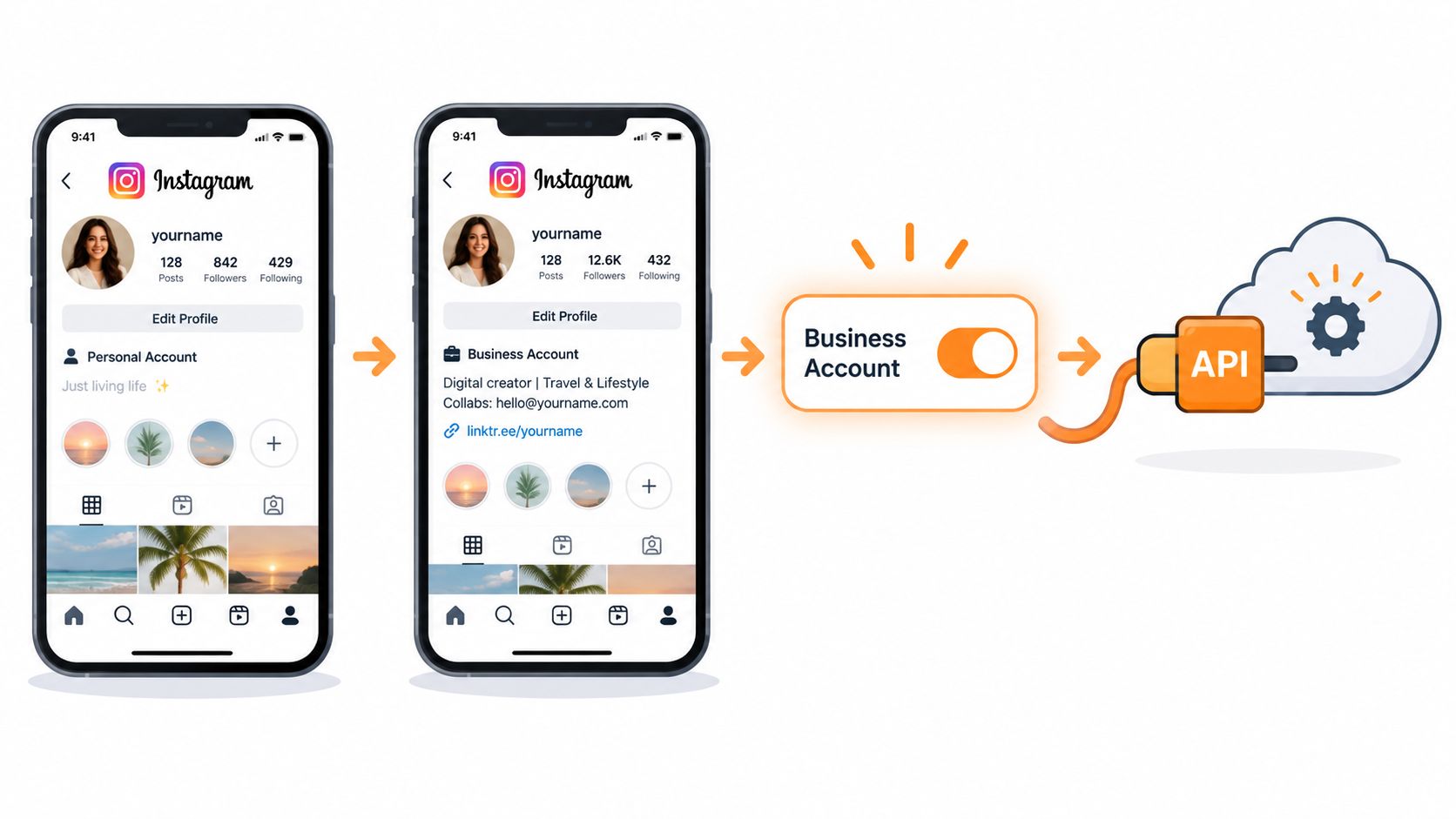
The first connection failure is usually structural, not technical. Personal Instagram accounts can't publish through the official API. Automation through the approved publishing route requires a Business or Creator account, and every published post needs media attached to it.
Start by converting the account to a professional profile inside Instagram's account settings. Choose Business or Creator based on how you manage the account, then connect it to the appropriate Facebook Page when the platform requests that relationship. The scheduler uses those permissions to identify the Instagram professional account and request access to publish on its behalf.
The connection sequence
- Convert the profile. A personal account will stop the process before publishing permissions are available.
- Link the Facebook Page. The Page relationship gives the authorization flow a business asset to associate with the professional Instagram account.
- Authorize the scheduler. Review the requested permissions and confirm that the selected Instagram profile is the one you intend to manage.
- Run a test publication. Upload one low-risk media asset, schedule it soon, and confirm that the post appears correctly.
- Check the queue status. A connected icon alone isn't enough. Look for a successful account check, active permissions, and a visible publishing result.
The official route is the Graph API for Business or Creator accounts. Personal accounts can't publish through it, and the platform documentation cited in the implementation guidance describes rolling limits of 100 posts per 24 hours, or 25 posts per 24 hours in another account and limit model, depending on the integration and enforcement context. Review the Instagram publishing API implementation guidance before you design a high-volume queue.
Tokens and permissions can expire or become invalid after a password change, account-security event, Page-role change, or permission revocation. When a scheduled post fails unexpectedly, reconnect the account through the tool's authorization screen instead of repeatedly retrying the same queue. Then publish a test asset before restoring the full schedule.
Before you queue a week: Confirm the account type, Page connection, permissions, media attachment, and test publication. A green connection label isn't proof that the entire publishing path works.
Creating and Formatting Content for Feed Posts Carousels and Reels
A scheduler can't rescue weak assets or incomplete media. Prepare the content in batches, but treat each format as its own production problem.
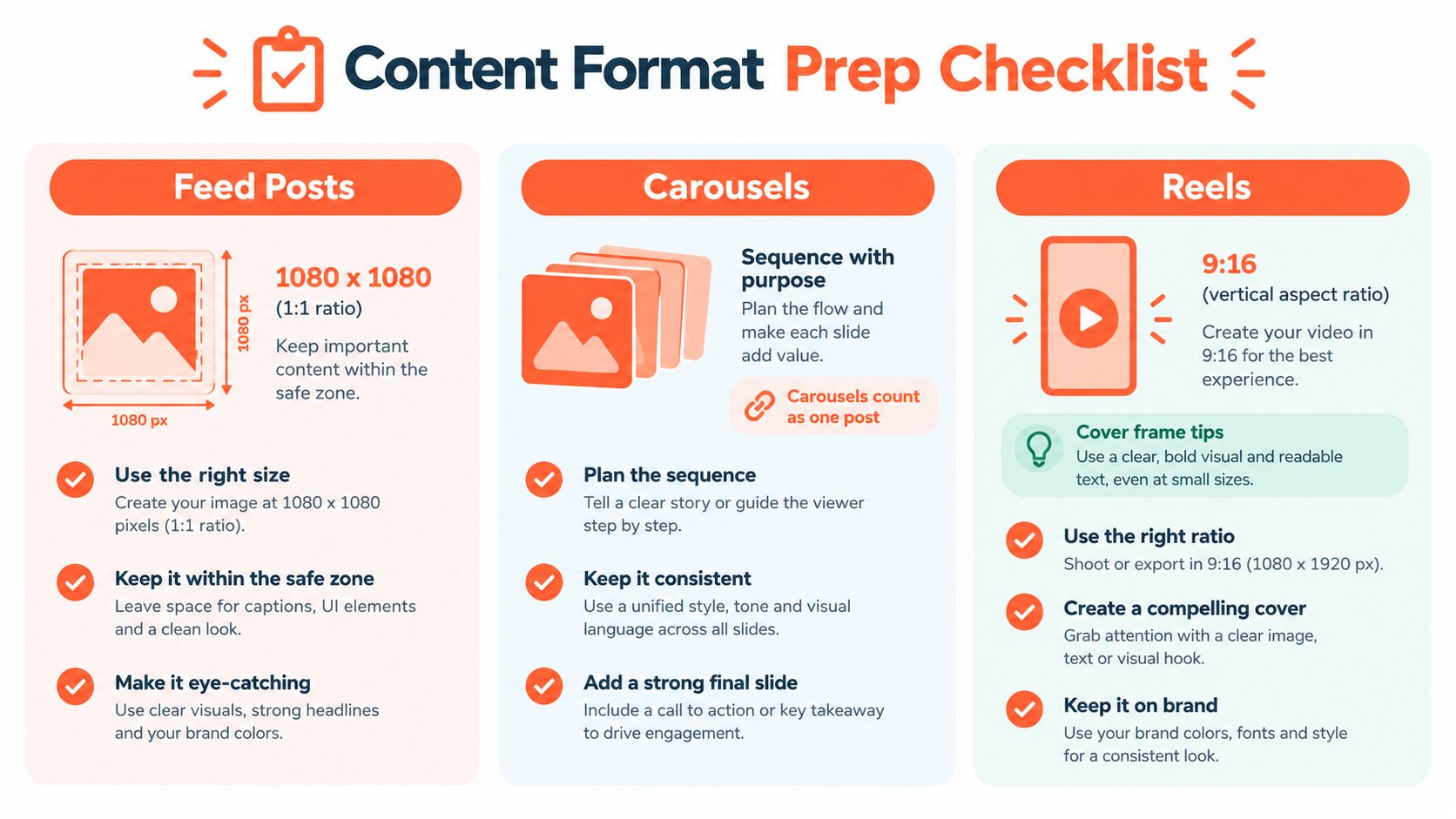
For feed images, work from a consistent visual system and keep important text away from edges where interface elements may compete for attention. Square designs commonly use 1080x1080 dimensions, while portrait assets need a separate template so the composition doesn't become a cropped version of the square layout. Put the hook where it remains readable in the grid preview and on the full post.
Build each format for its job
Carousels need an argument, not a pile of slides. Lead with a clear promise, develop one idea per slide, and finish with an action that makes sense for the reader. Numbering helps people understand progression, while consistent typography keeps the sequence legible when users swipe quickly. Carousels count as one post against the publishing quota, but the media still needs to be prepared and uploaded correctly.
Reels need a strong opening frame, readable captions, and a cover that works both in the profile grid and in the video context. A 9:16 aspect ratio is the practical starting point for vertical video, with key text and faces positioned away from interface zones. If you're building a sound library from your own short-form footage, a resource that explains how to convert Reels to audio file can help with legitimate editing and repurposing workflows.
Stories should be designed for quick, sequential consumption. Keep each frame focused, make interactive elements easy to tap, and preview the complete sequence before scheduling. A Story that looks fine frame by frame can feel disjointed when the transitions and calls to action don't align.
A long article or podcast transcript can supply the raw material for several formats. Extract one central claim for a carousel, a practical example for a short video, and a memorable sentence for a quote card. A guide to creating short videos for social media can help structure that transformation without treating every source paragraph as a finished script.
Keep batching within the API envelope
Aggressive batching creates a failure pattern that looks like a content problem but is in reality a quota problem. One implementation guide notes a limit of 50 unpublished media containers and 200 API calls per hour per token, while publish limits may also be enforced on a rolling basis. That means a team can prepare many assets and still hit a separate API or container ceiling before the posts reach the calendar.
Use a queue that exposes failed media, pending containers, and remaining capacity. Spread large batches across the available publishing window instead of creating every format at once, then retrying blindly when the first request fails.
Before scheduling, check:
- Media integrity: Every post has the correct image or video attached.
- Format fit: Dimensions, aspect ratio, cover frame, and text placement match the destination.
- Sequence logic: Carousel slides and Story frames make sense in order.
- Brand consistency: Fonts, colors, logos, and voice match the account.
- Human review: Captions, claims, links, and calls to action have been read by a person.
When to Schedule and How to Find Your Best Posting Times
There isn't one universal best time to publish on Instagram. In 2026, an analysis of 455,062 posts identified 12 to 2 PM as the most reliable window and 9 to 11 PM as the strongest overall period. Another analysis of 2.2M posts found that 12 a.m. local time performed best, with Tuesday at 12 a.m. as the top window. Both findings are cited in this comparison of Instagram posting-time analyses.
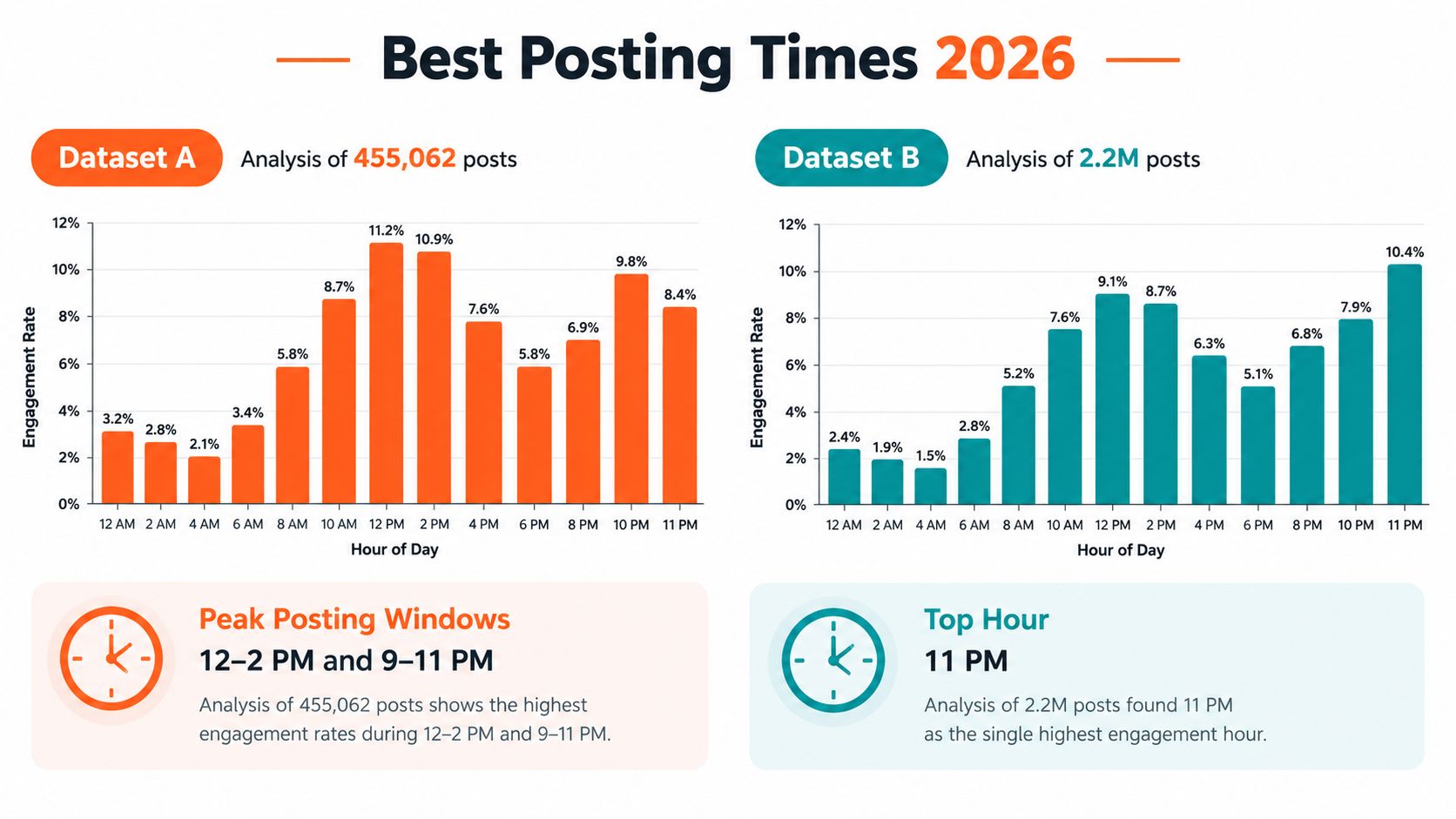
The disagreement is useful. The studies examined different datasets, audiences, and likely content mixes, so their answers shouldn't be turned into a single hard-coded rule. Your audience's geography, routines, format preferences, and relationship with your brand can all change when a post gets attention.
Replace the magic hour with a test plan
Start with several deliberately different slots. Use a daytime window, an evening window, and a local-time slot that reflects a major audience region. Keep the content mix reasonably balanced so you're not comparing an educational carousel against a highly relevant Reel and blaming the clock for the difference.
A practical rotation looks like this:
- First test cycle: Rotate the same broad content categories across the selected slots.
- Second test cycle: Repeat the slots with new assets and separate weekday from weekend behavior.
- Review point: Compare engagement, saves, shares, profile actions, and meaningful comments rather than relying on likes alone.
- Adjustment: Keep promising windows, replace weak ones, and test one new slot instead of changing everything at once.
For international audiences, segment timing by geography where the tool and analytics support it. A late-night slot in one region may be a morning slot for another, and a single account-level average can hide that difference.
Automation makes this experiment manageable because the scheduler can rotate times while you're producing content. Manual posting tends to pull people toward the easiest time to remember, not necessarily the time that produces the clearest evidence. Treat the calendar as a testing instrument, then recalibrate it when audience behavior changes.
Troubleshooting Common Instagram Automation Problems
Most failures fall into a small group of symptoms. Diagnose the publishing path before rewriting the caption or changing the posting time.
The post fails at the scheduled moment
The common causes are an expired token, revoked permission, disconnected Facebook Page, or a professional account that no longer satisfies the integration requirements. Reconnect the account, confirm the correct Page and profile are selected, and publish a test asset before reactivating the failed posts. Don't keep retrying a broken authorization state because repeated attempts can leave duplicate drafts or confusing queue statuses.
Instagram rejects the media
Check the asset against the format requirements first. A missing media attachment, unsupported file treatment, incorrect aspect ratio, or damaged upload can stop publication even when the caption is valid. Open the failed item in the scheduler, replace the media with a freshly exported file, and send it through a single test slot.
The post shows as published but isn't visible
Treat this as an API-status problem until verified. Check the account's Instagram profile, the scheduler's publication log, and any error details attached to the media container. If the platform reports a partial failure, pause related items and contact the tool's support team with the post identifier rather than creating a duplicate immediately.
A large batch exhausts capacity
Rolling publish caps, unpublished media-container limits, and hourly API-call limits can all affect the same workflow. One guide identifies 50 unpublished media containers and 200 API calls per hour per token as separate constraints, so a queue can fail before its daily publishing allowance is the obvious issue. Spread creation and publication across time, remove abandoned containers, and let the system report remaining capacity instead of assuming a midnight reset.
A growth bot damages the account
This is more serious than a missed post. A cited benchmark found bot-grown accounts averaged 1.2% engagement versus 5.8% for human-grown accounts, while bot-grown accounts had 2.5 times as many fake followers. The same source reports that automated or bot accounts were 35% more likely to be shut down, and fewer than 1% of terminated automation accounts were successfully restored. Review the benchmarking guide on Instagram automation risks for the cited comparisons.
Separate inconvenience from danger: A failed scheduled post needs diagnosis. Mass engagement automation can threaten the account itself.
Stop follow and unfollow bots, automated comments, artificial likes, and follower services. Keep people responsible for replies, conversations, and judgment. If your current process is still consuming too much calendar administration, this guide on how to stop wasting time on scheduling offers another workflow perspective, but no tool should replace genuine community management.
Your Weekly Automated Instagram Workflow
A dependable workflow needs a production rhythm, not an empty calendar filled in during a panic.
Monday is for source material. Choose one article, newsletter, podcast, or campaign theme and extract the strongest ideas. Prepare a mix of feed posts, carousels, Reels, and Stories, then review every caption and media attachment before anything enters the queue.
Use one scheduling block to assign the week. Rotate time slots rather than copying a single “best” hour, and label posts by format, topic, and campaign. Leave room for timely manual content so the automated queue doesn't crowd out announcements or behind-the-scenes moments.
Keep a daily human window. Spend a short, consistent period replying to comments, checking mentions, and watching for context that should change the next scheduled post. Publishing can run automatically, but relationships still need a person.
Review performance at the end of the week. Compare formats and tested time slots, identify posts worth adapting, and remove weak assumptions from the next batch. A 2025 industry source reported that automation saves an average of more than 6 hours per week, or roughly 300 hours per year for one team member, while 2026 Instagram marketing data reported average engagement of 2.05% for Reels and 1.64% for video posts. Those figures appear in this data on automation time savings and Instagram formats.
The operating principle is simple: automate distribution, never relationships. Let software handle queues, formatting, and repeatable publishing while people decide what deserves attention and how the brand responds.
WaveGen.ai turns one article, newsletter, podcast script, or video transcript into on-brand Instagram carousels, short videos, quote cards, and captions, with editing and scheduling in the same workflow. If you want to build an automated Instagram post system around your existing ideas rather than create every asset from scratch, visit WaveGen.ai and try the content distribution workflow.
automated instagram post
instagram scheduling tools
instagram automation
social media scheduling
reels automation
Turn this kind of writing into a week of social content.
Paste a blog post, newsletter, or rough draft — WaveGen turns it into publish-ready carousels, captions, and slideshows for every channel.
No credit card · First posts in 2min