LinkedIn Carousel Template
Free LinkedIn Carousel Templates
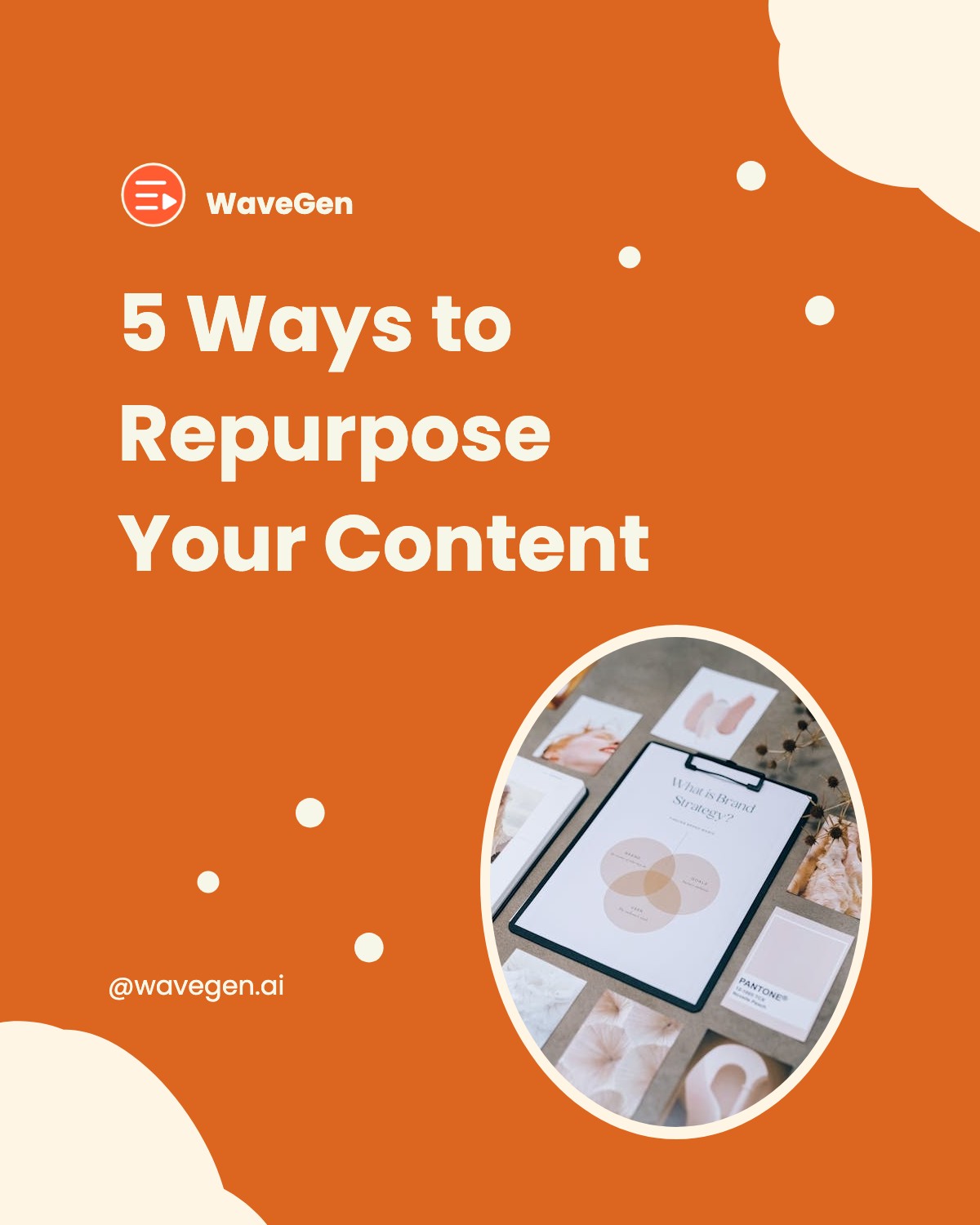
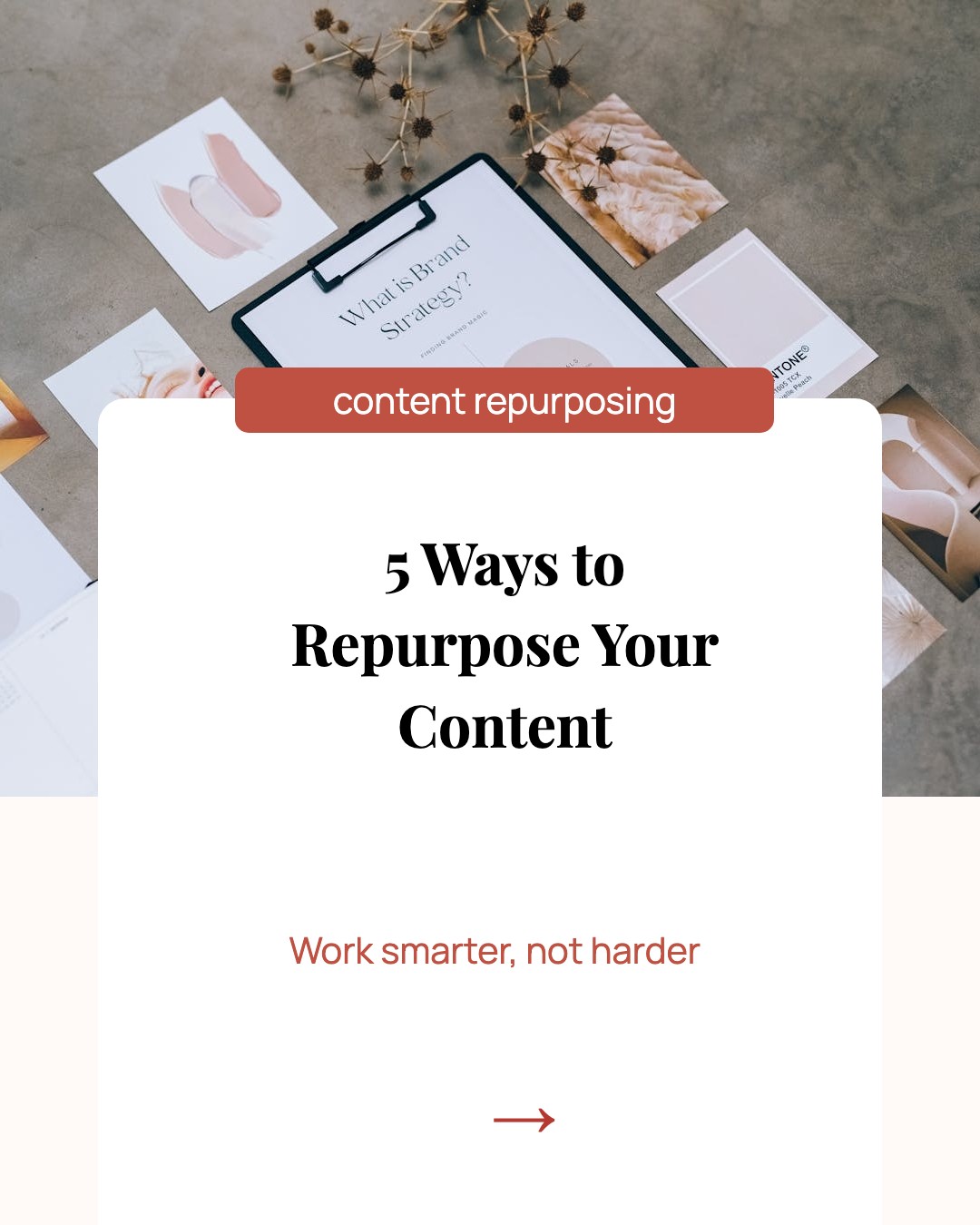
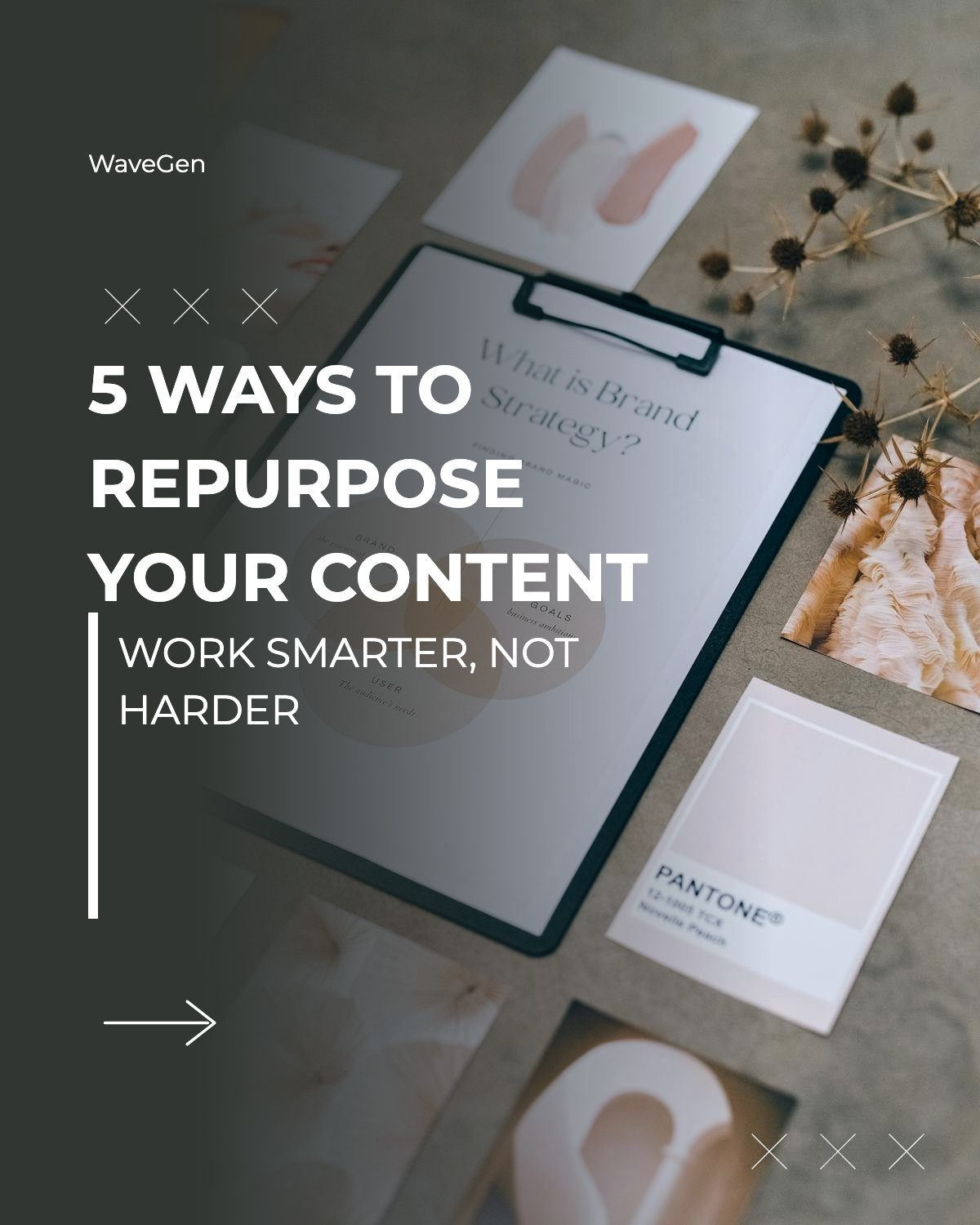
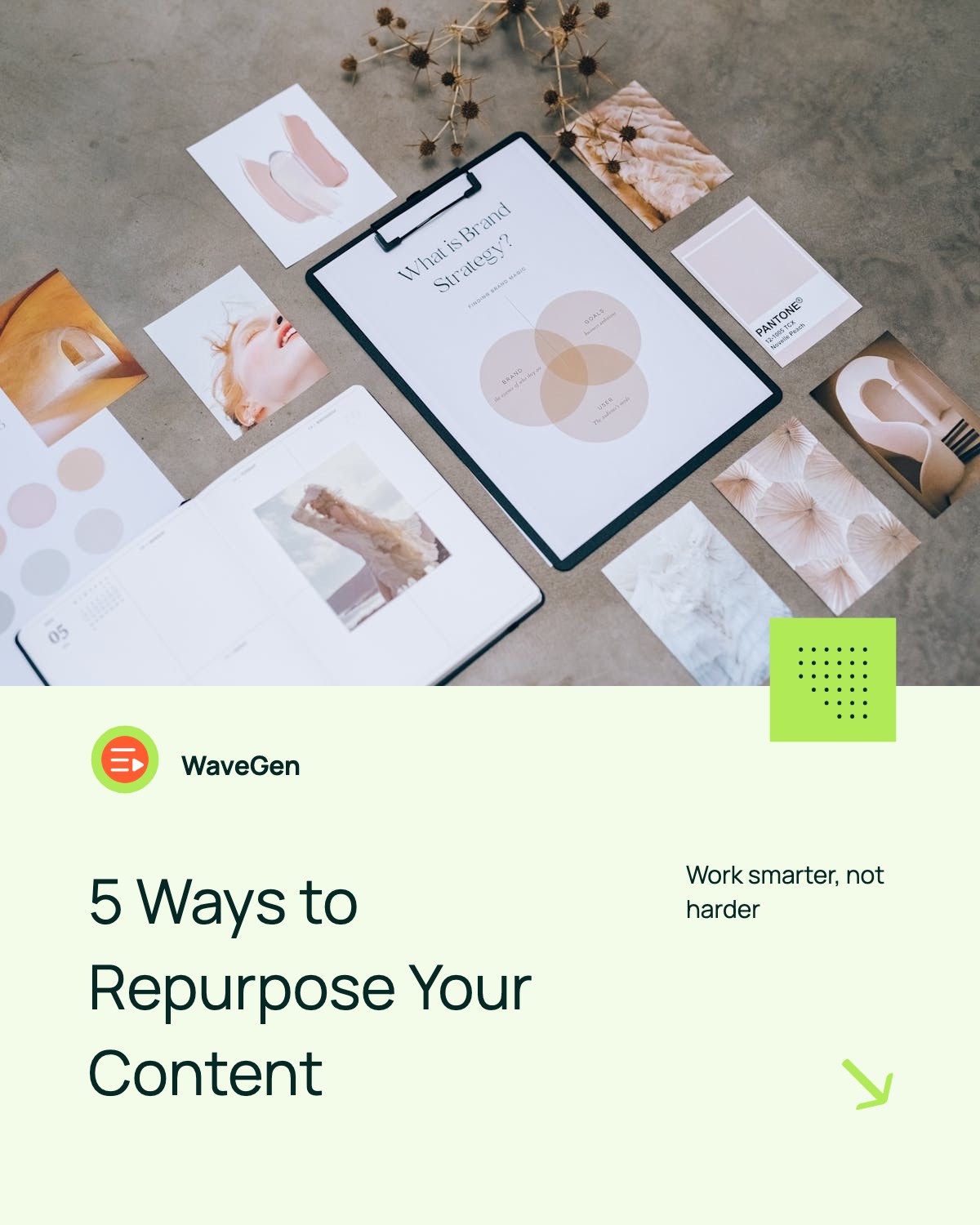
Browse professional carousel templates designed for LinkedIn. Pick one you like, customize it with your content, and export as PDF.
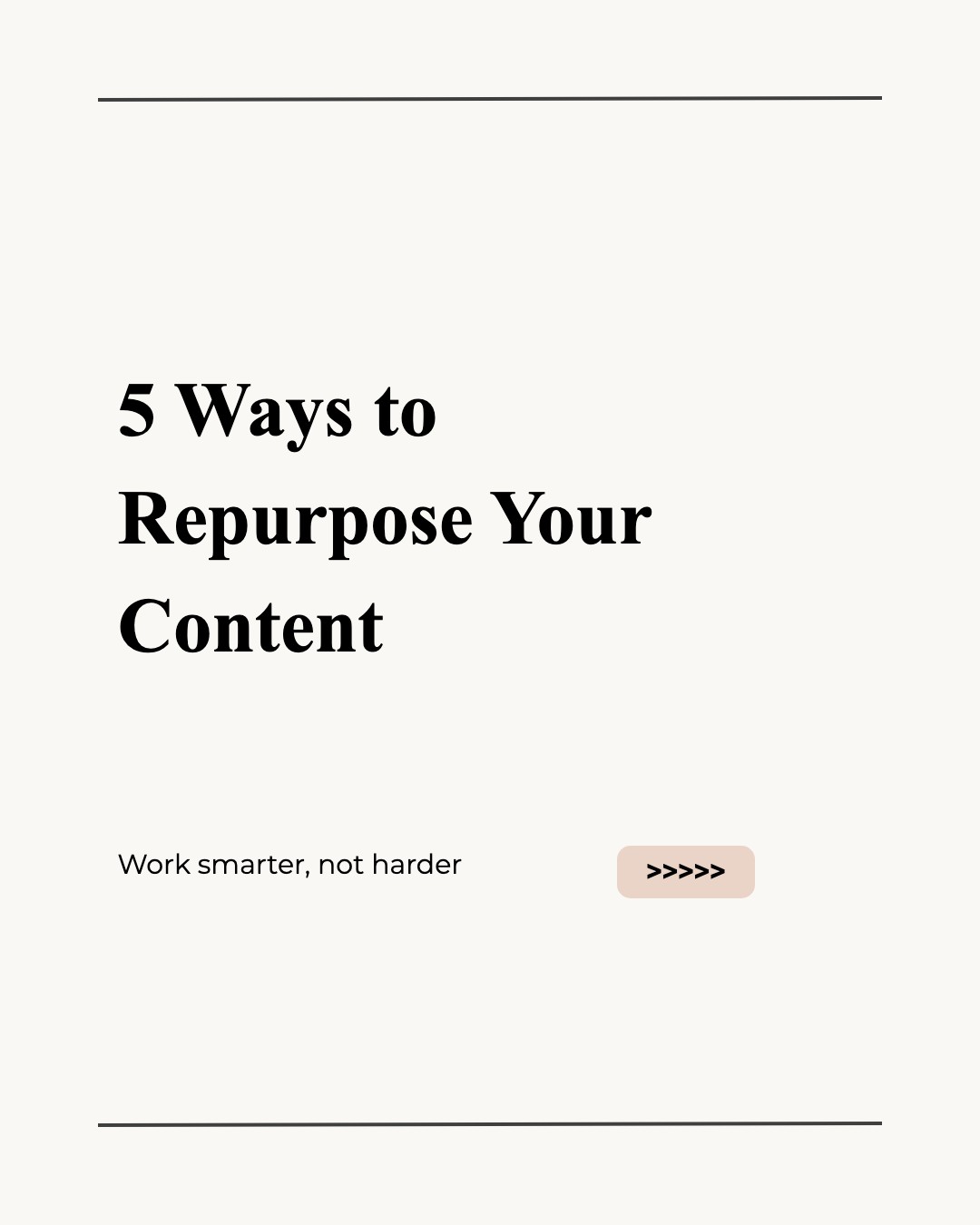
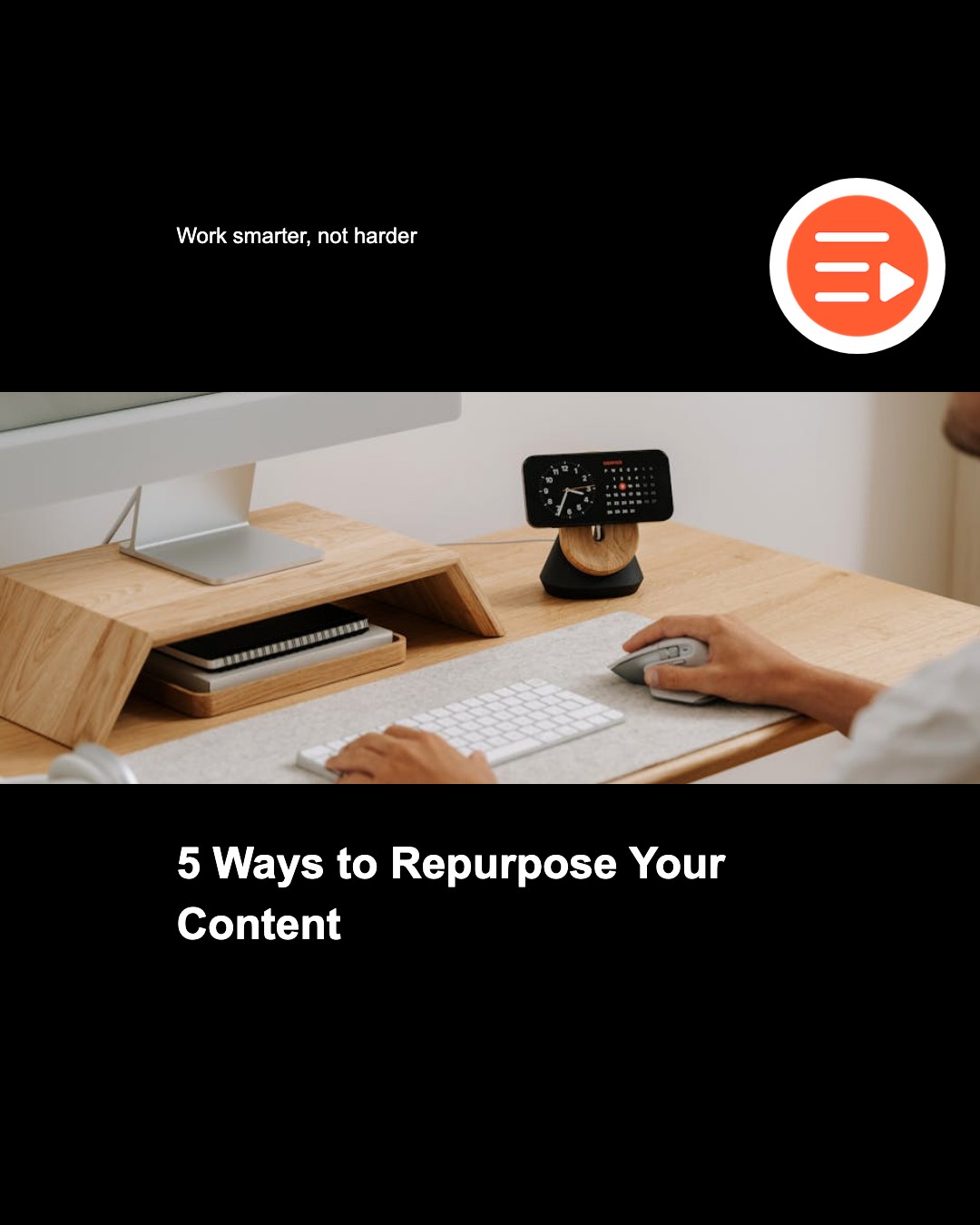
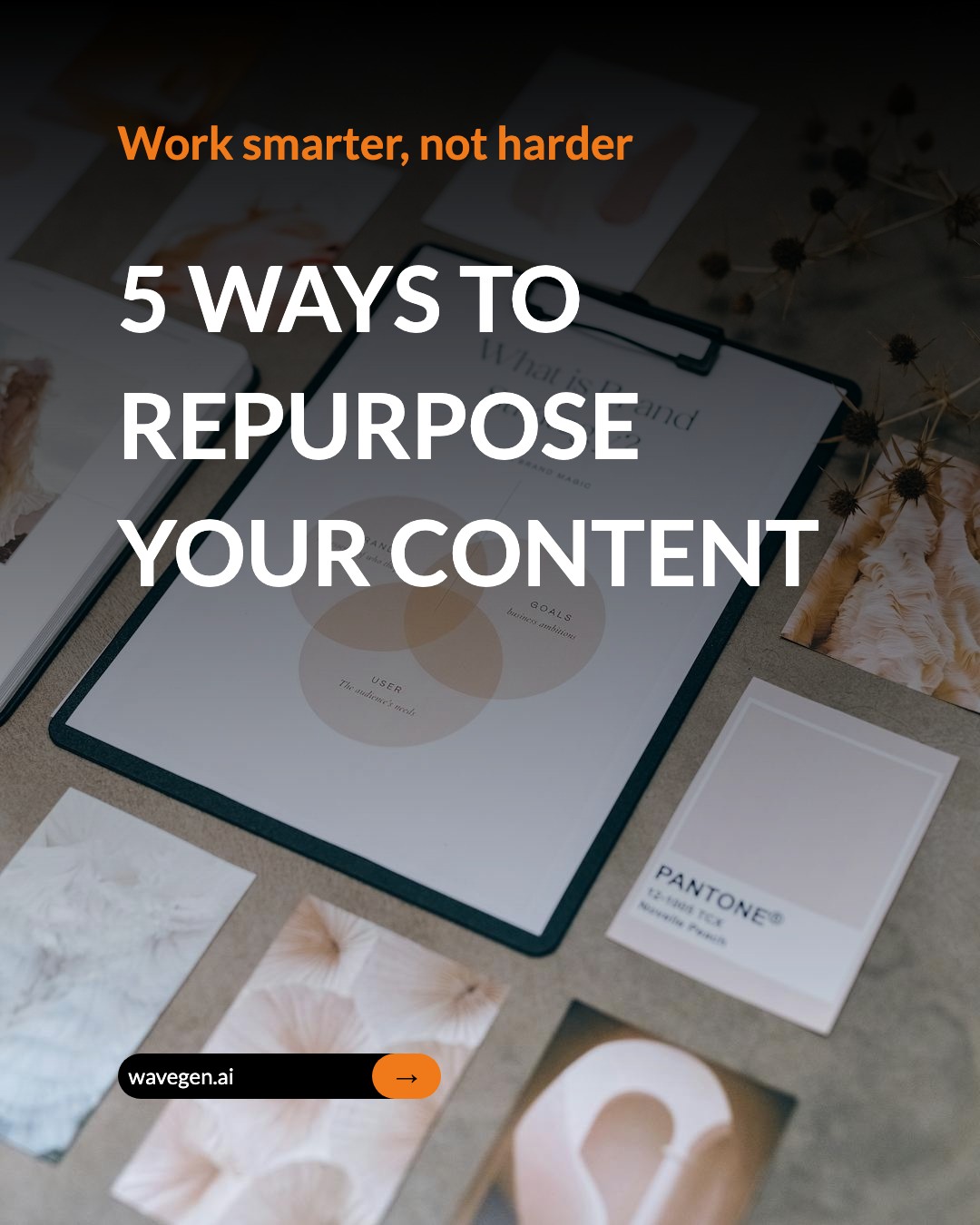
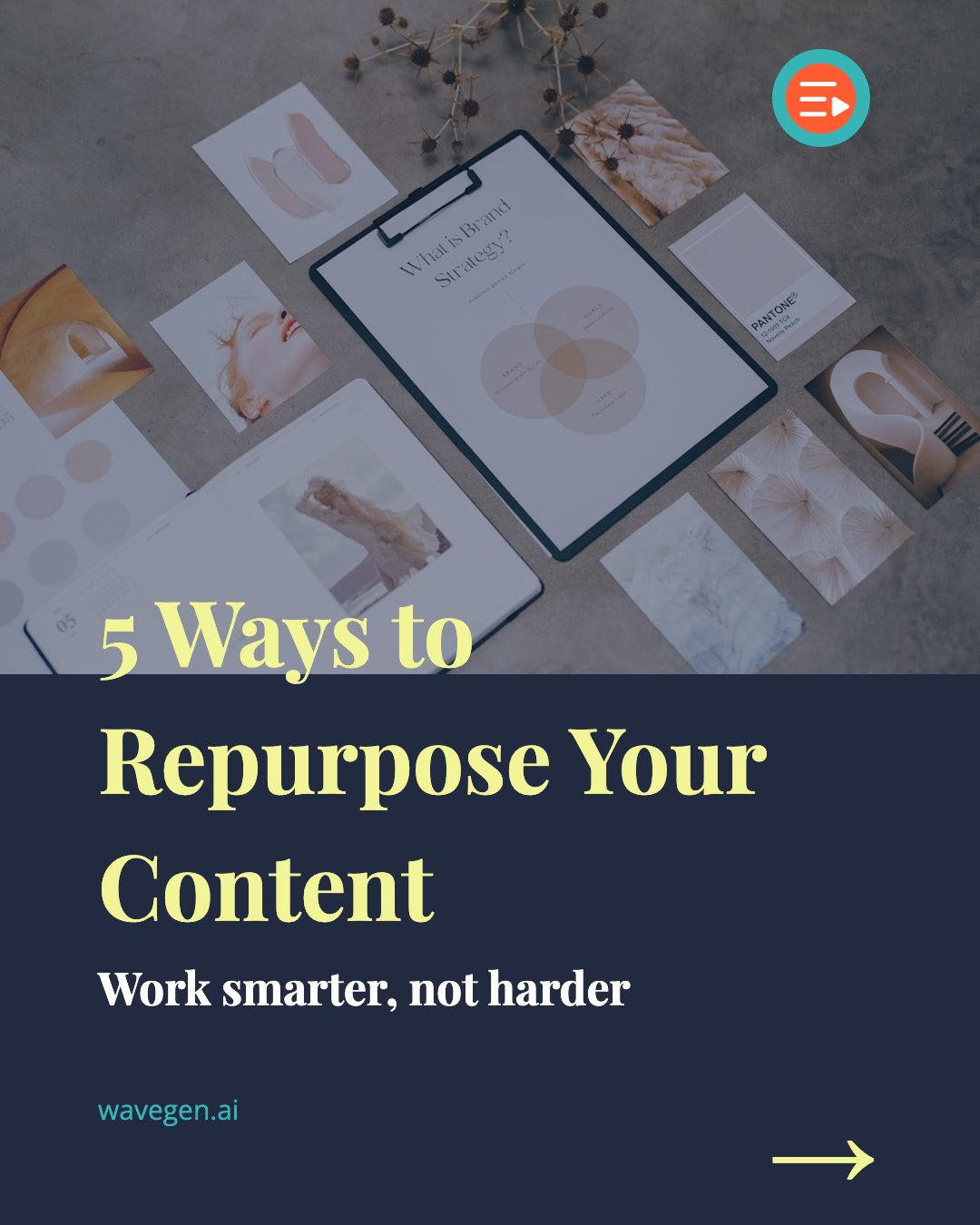
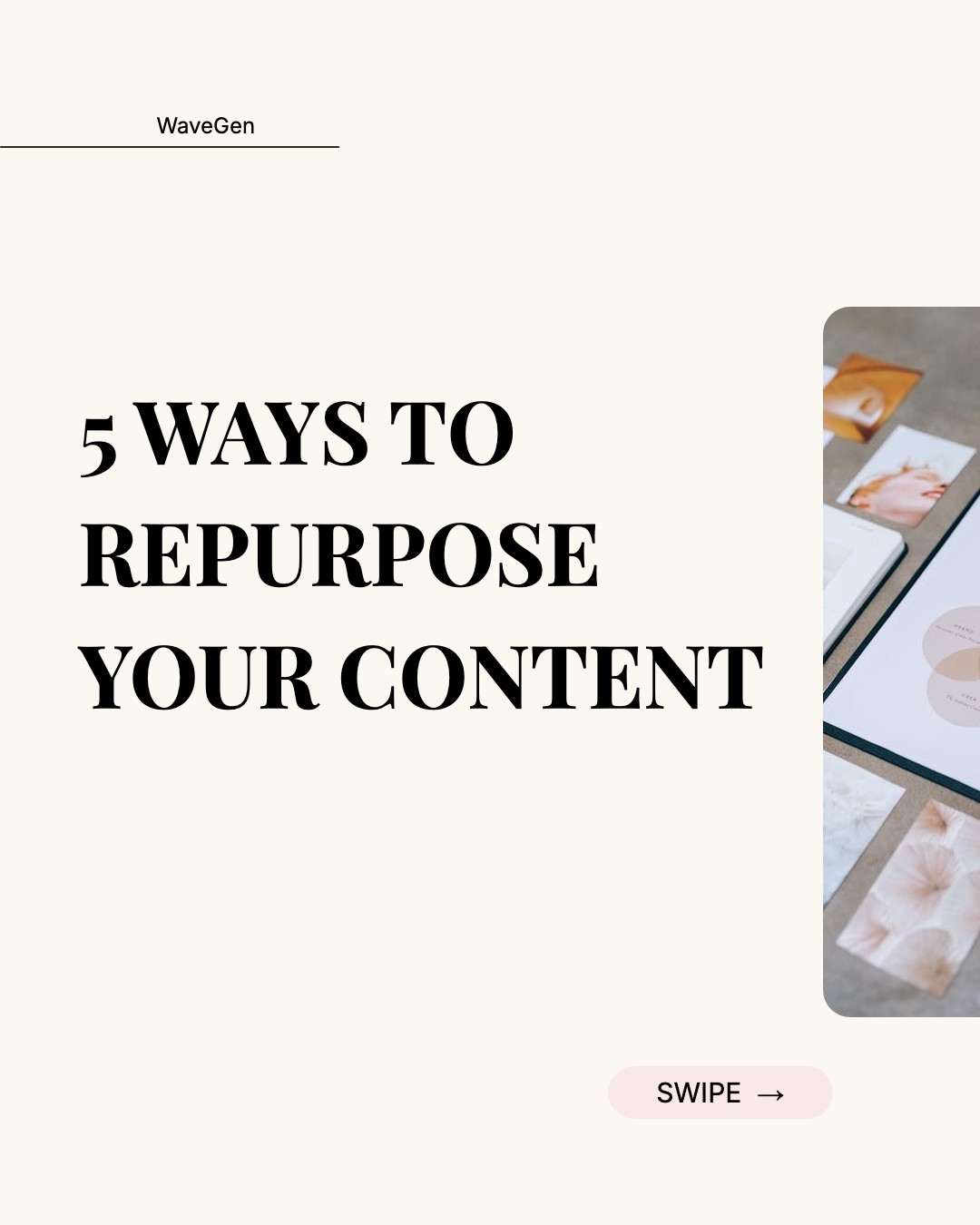
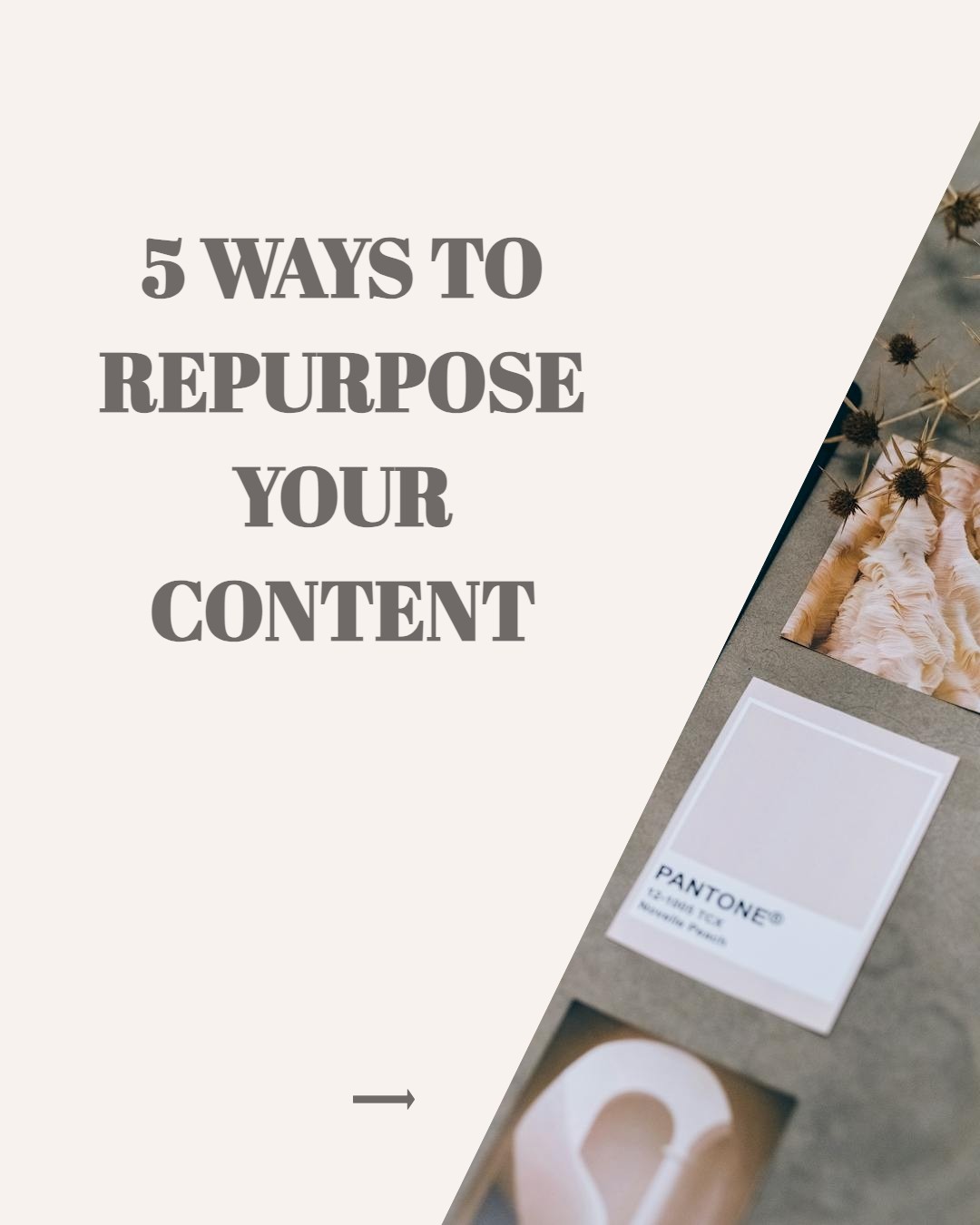

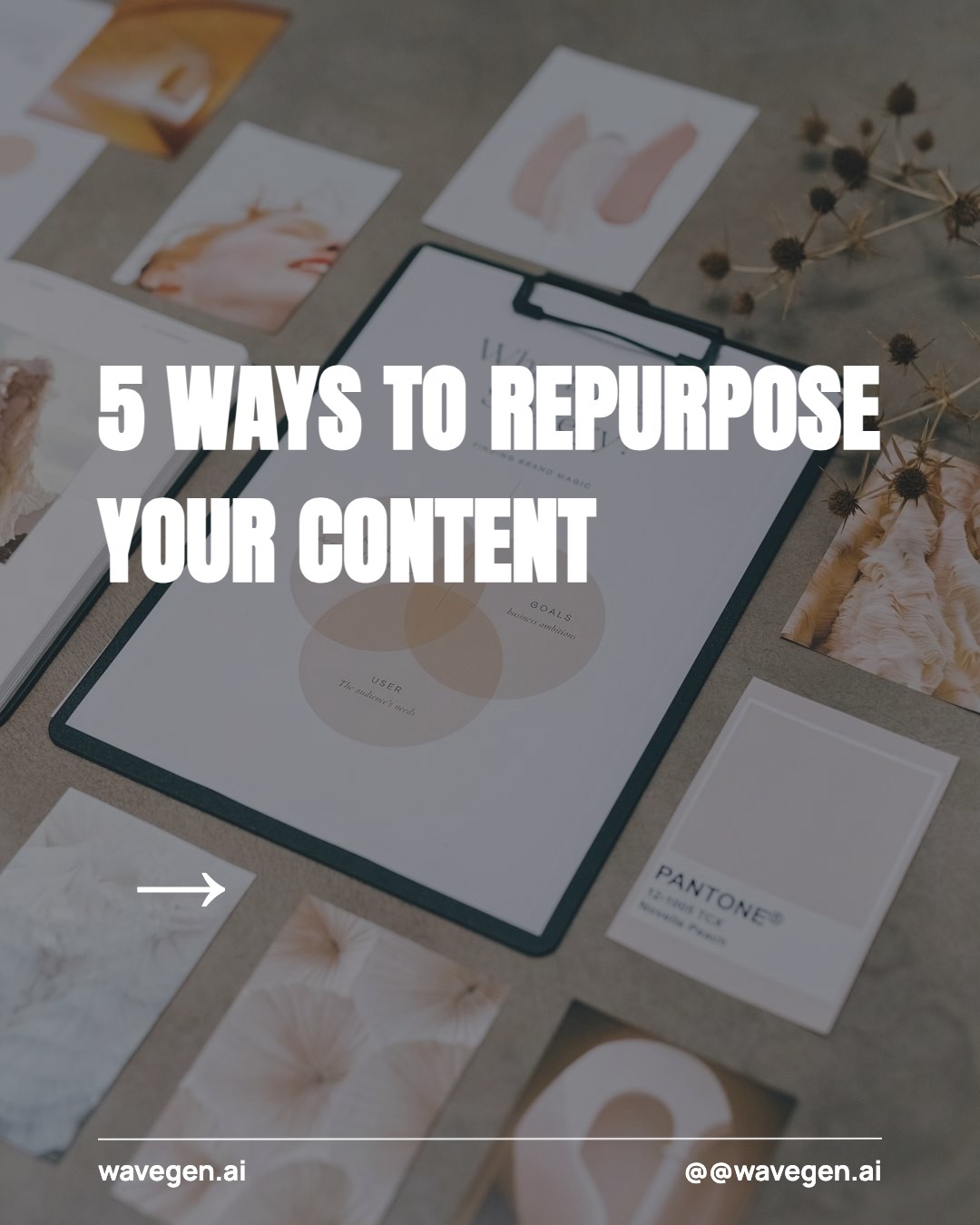
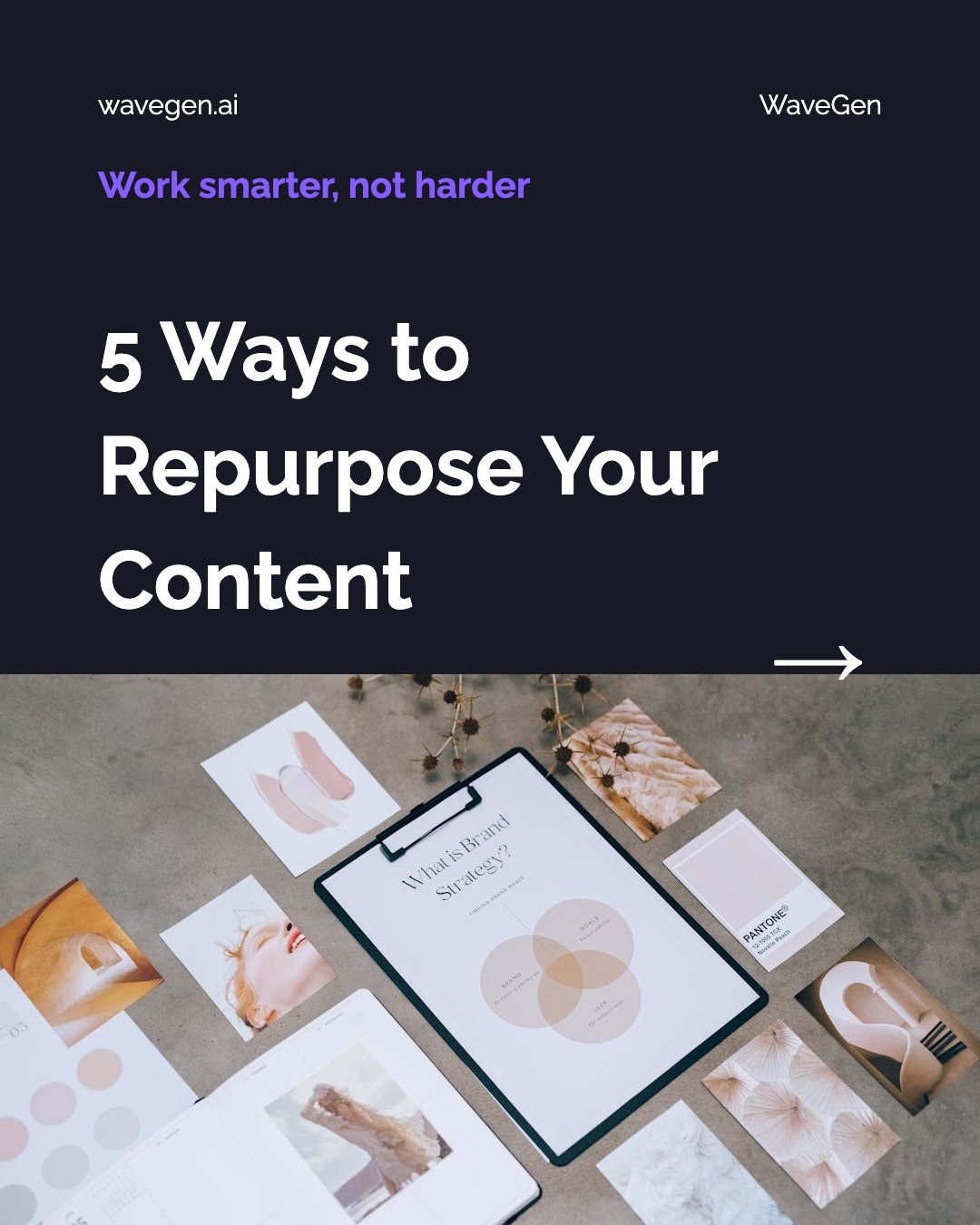
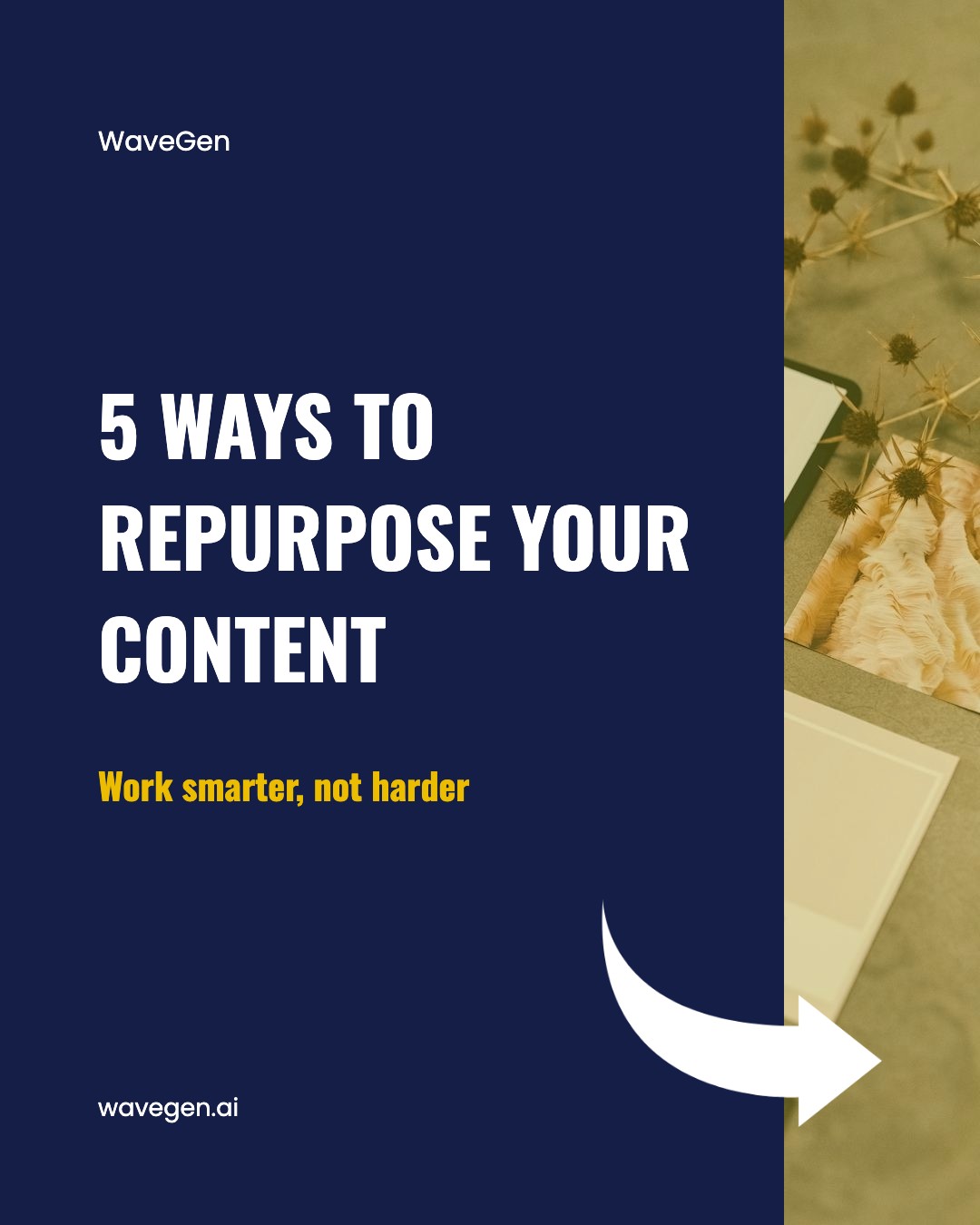
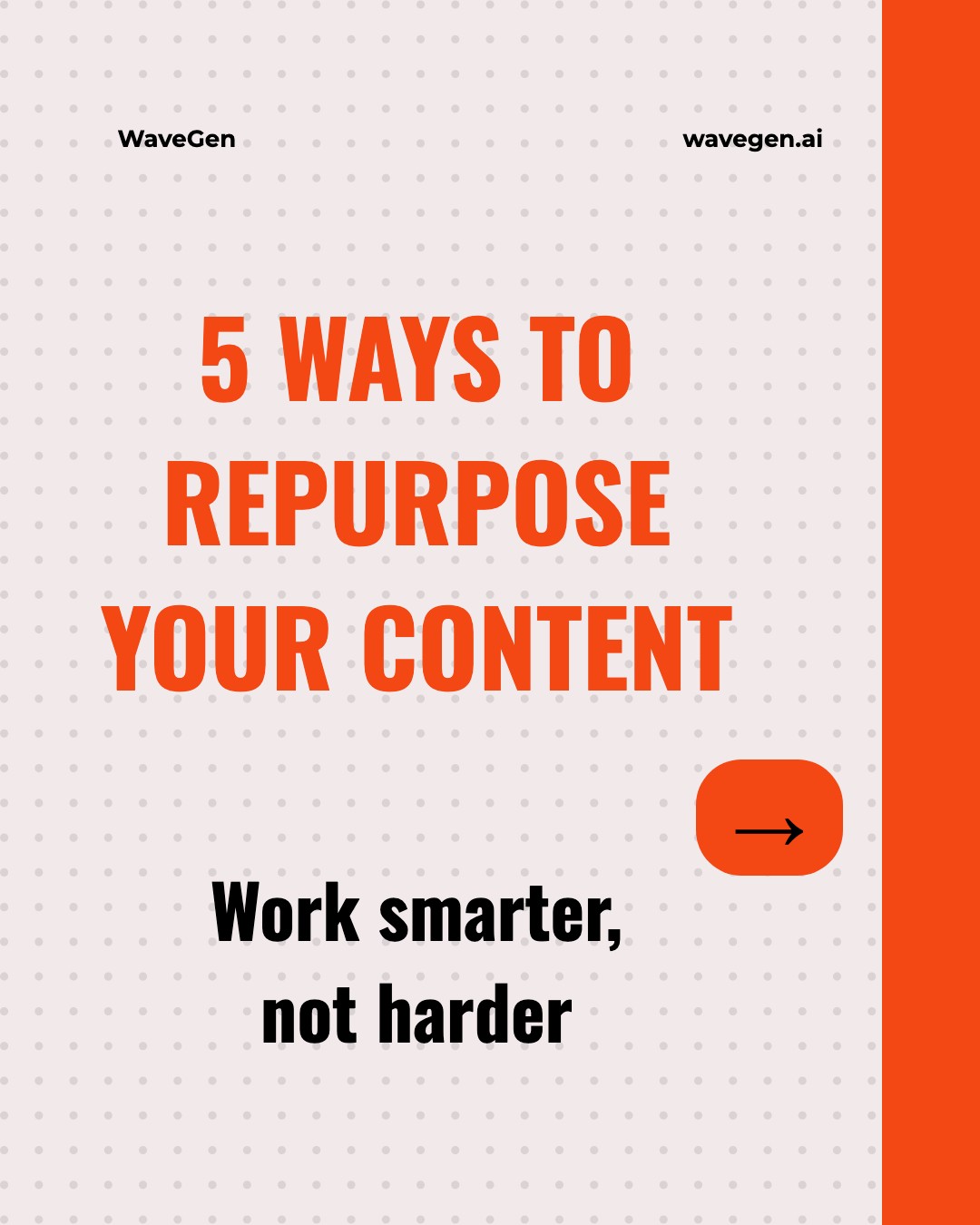
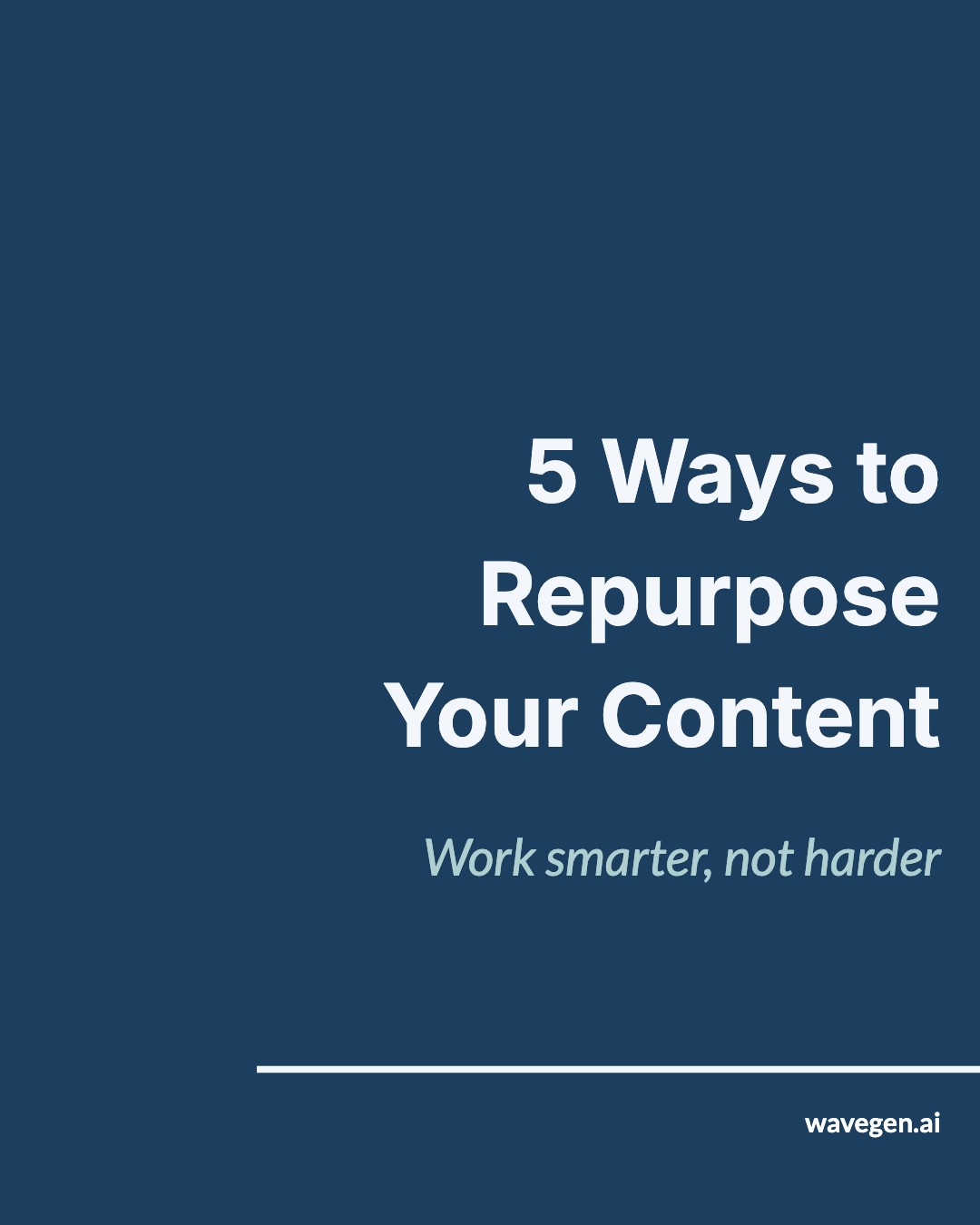
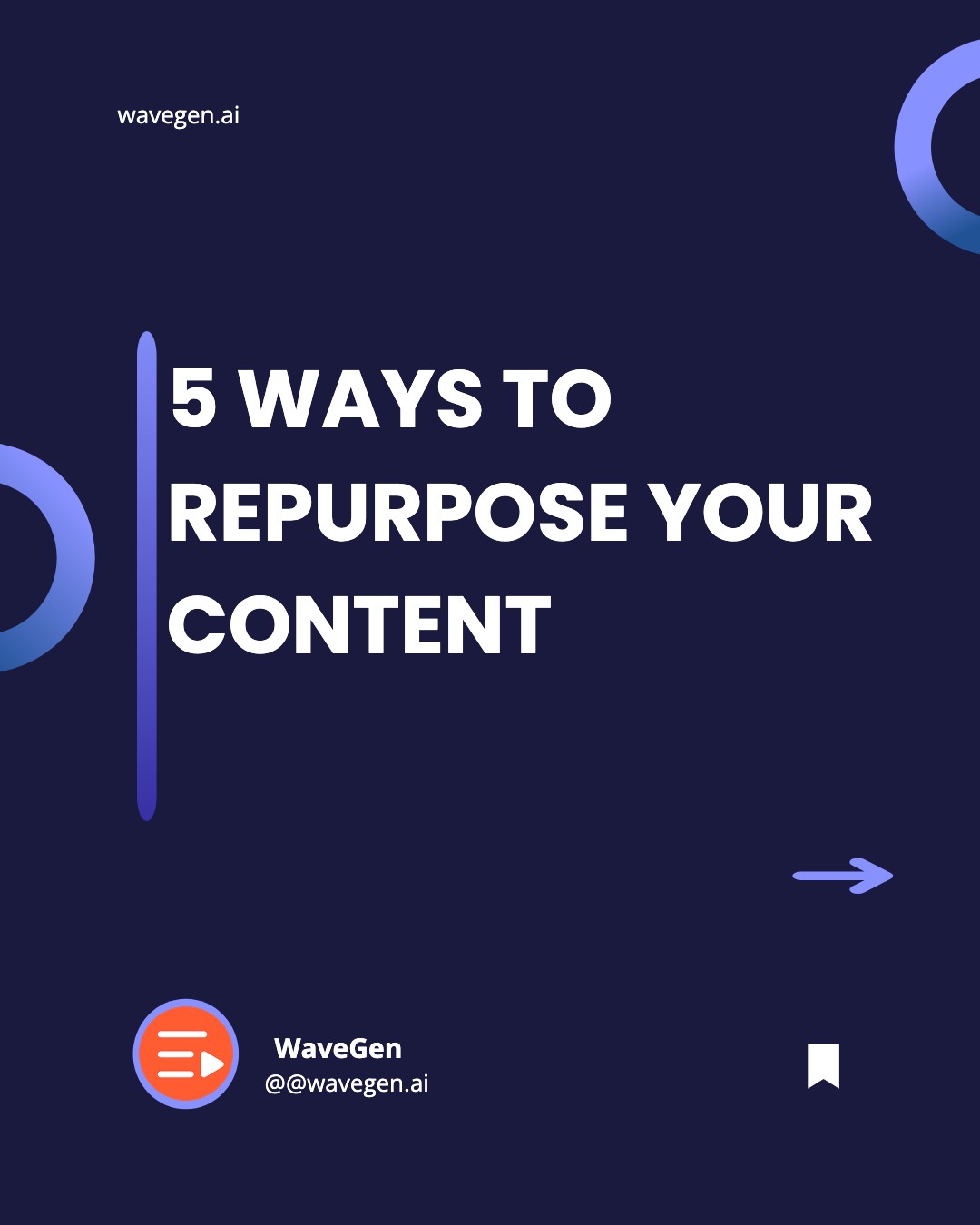
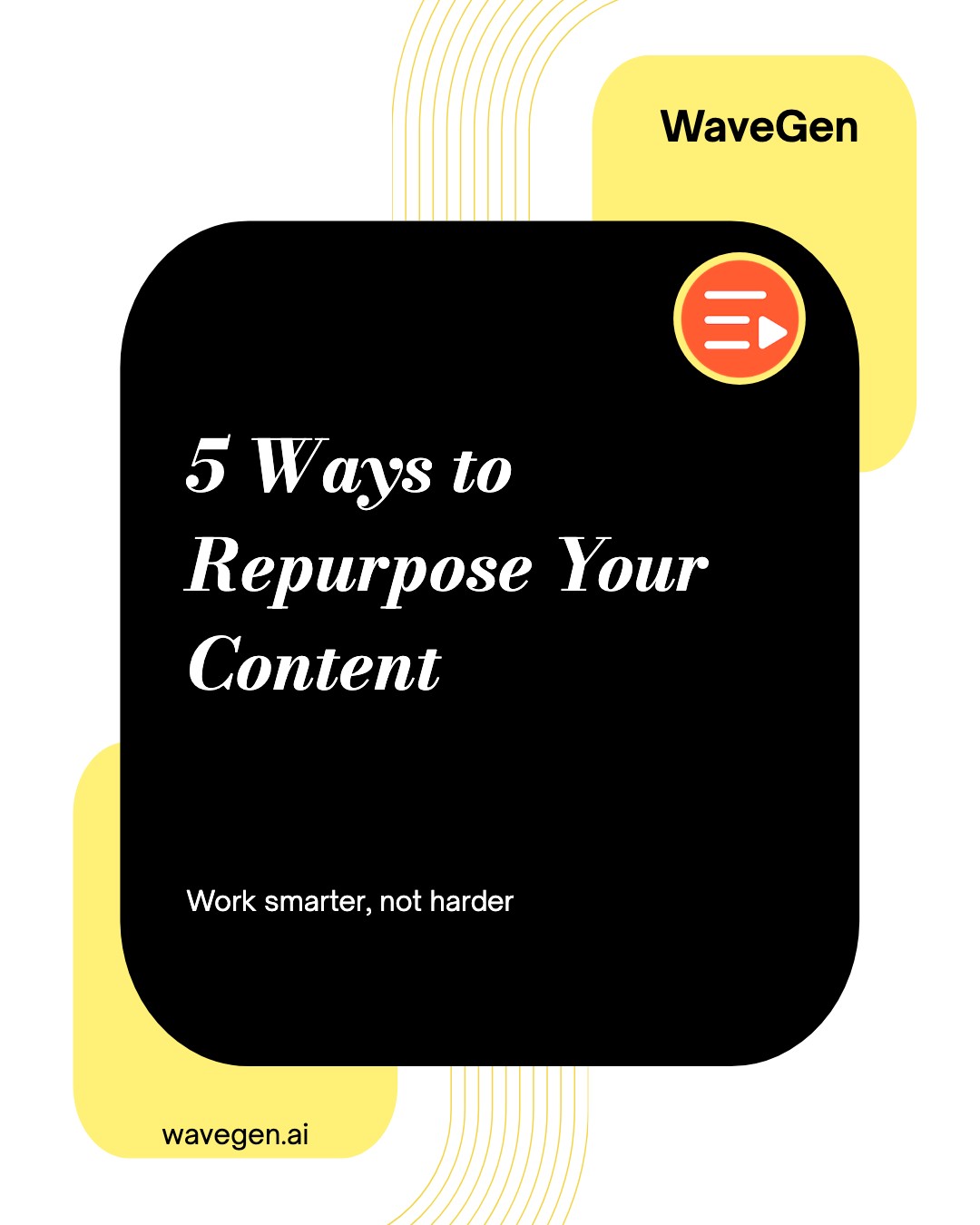
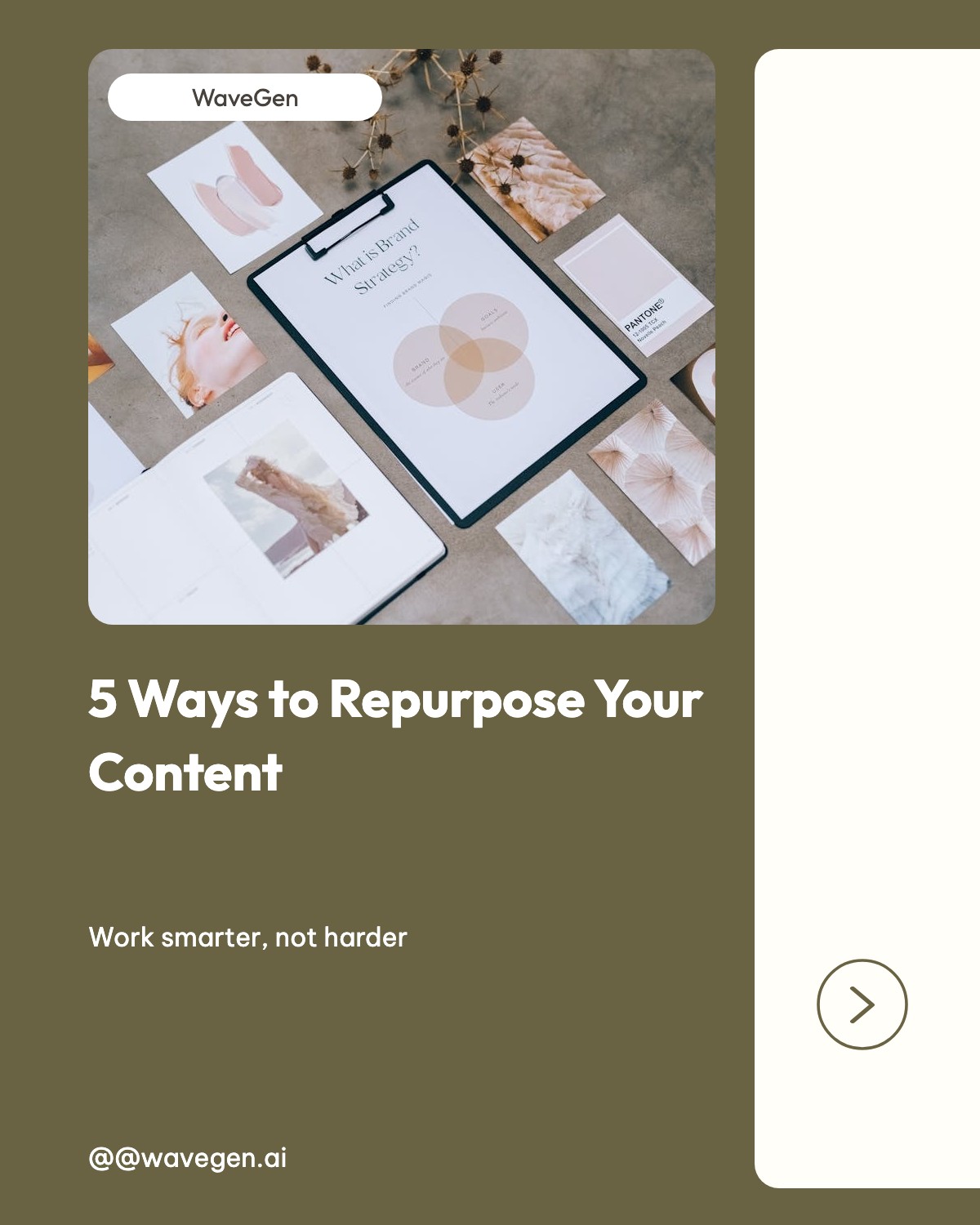
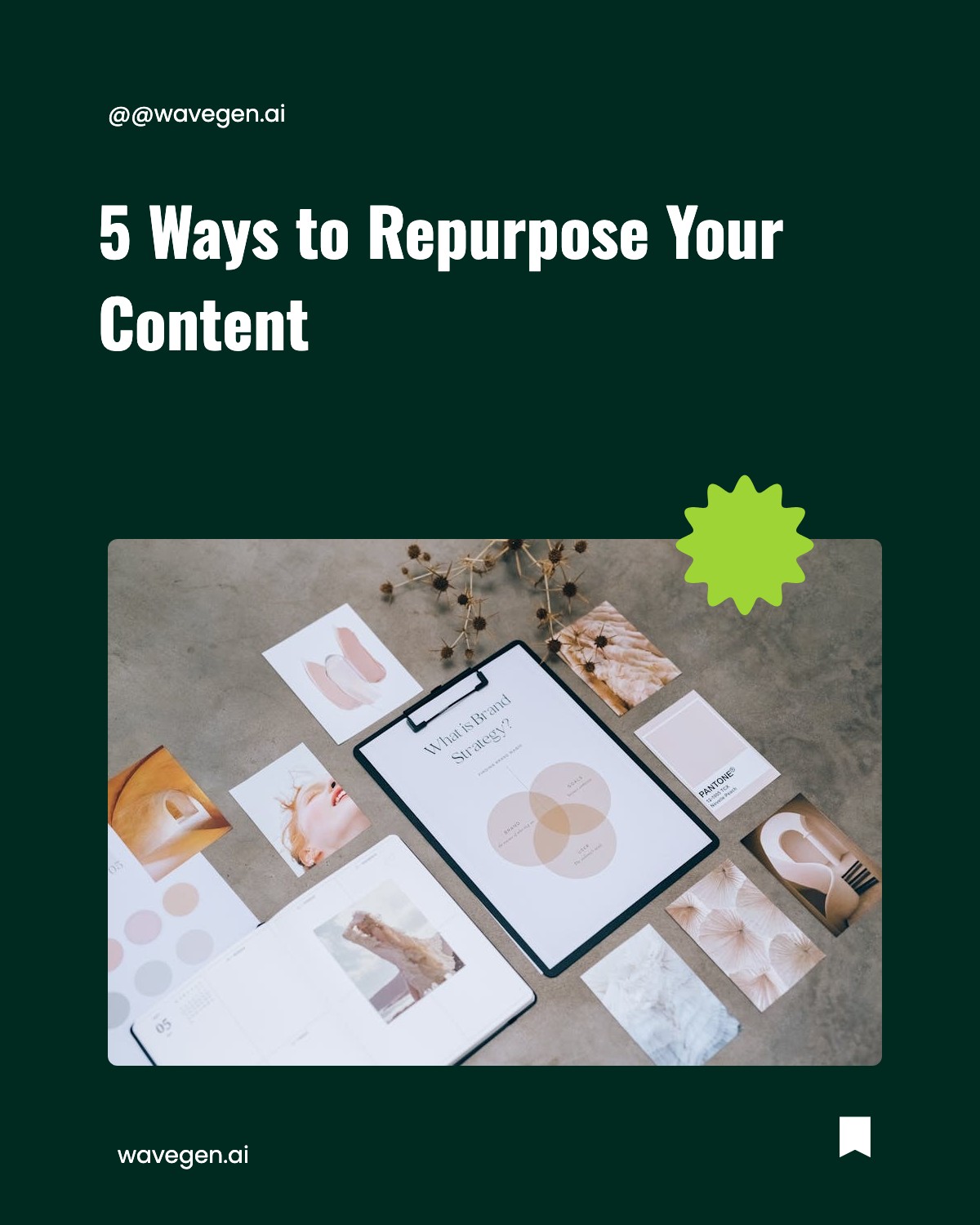
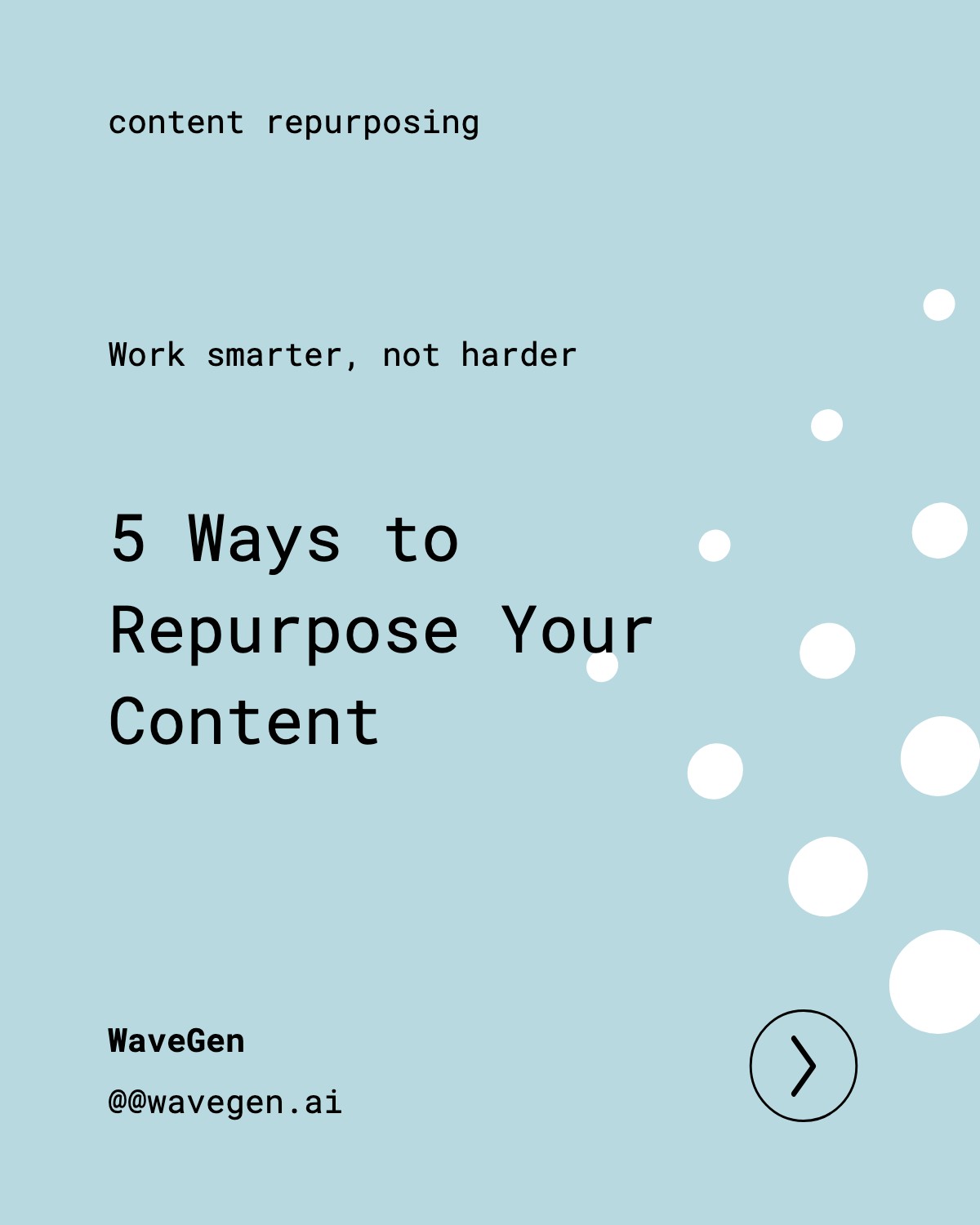

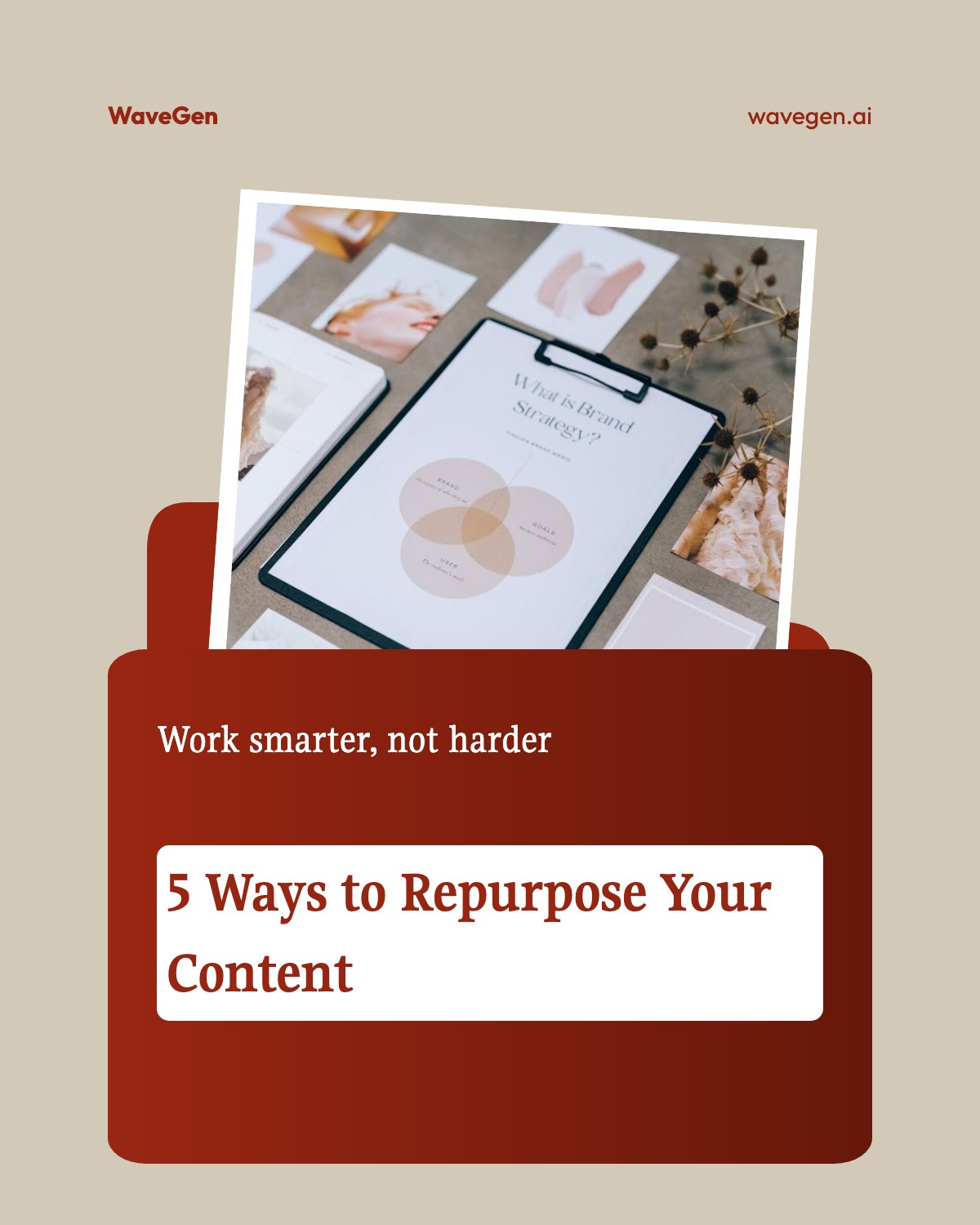
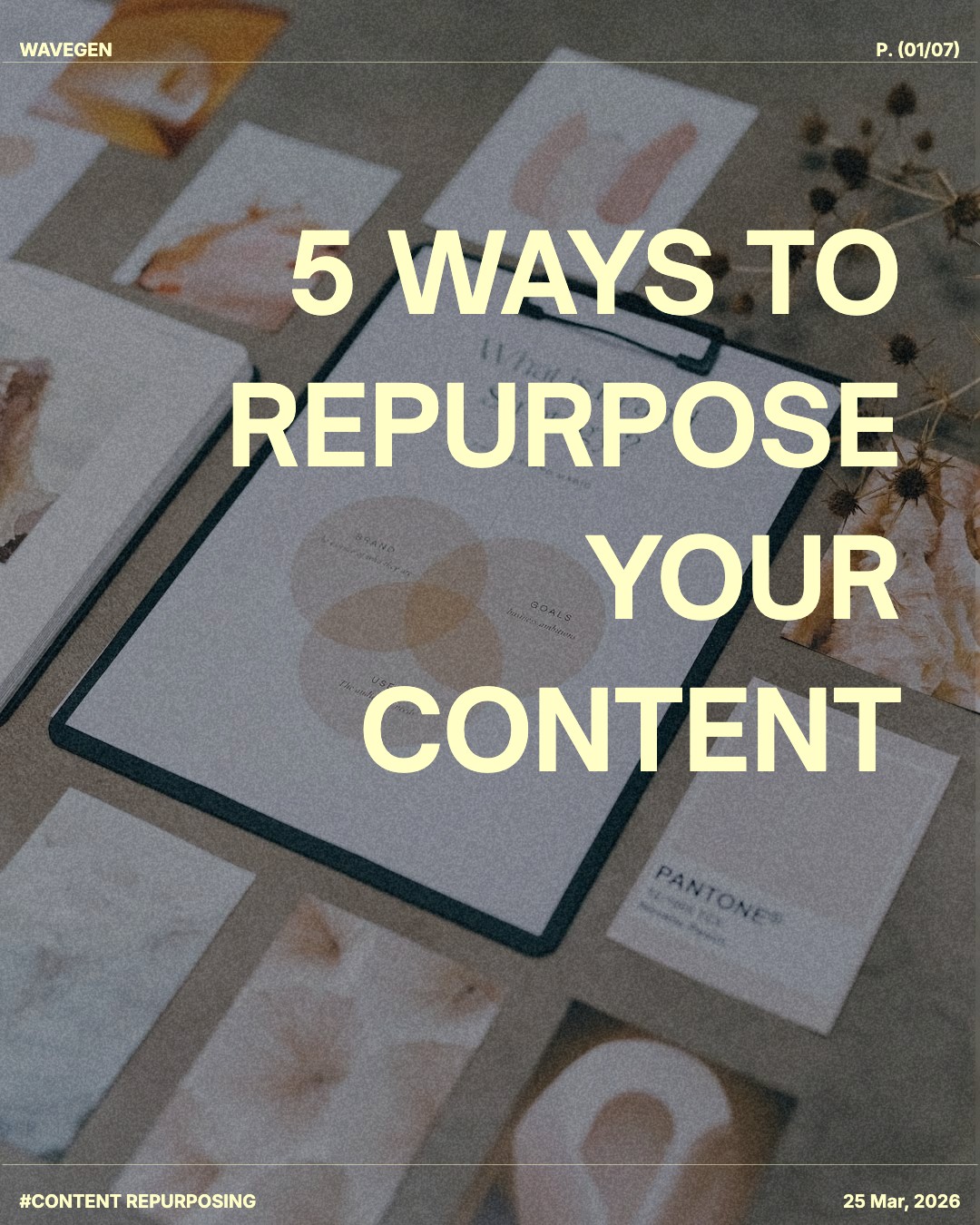
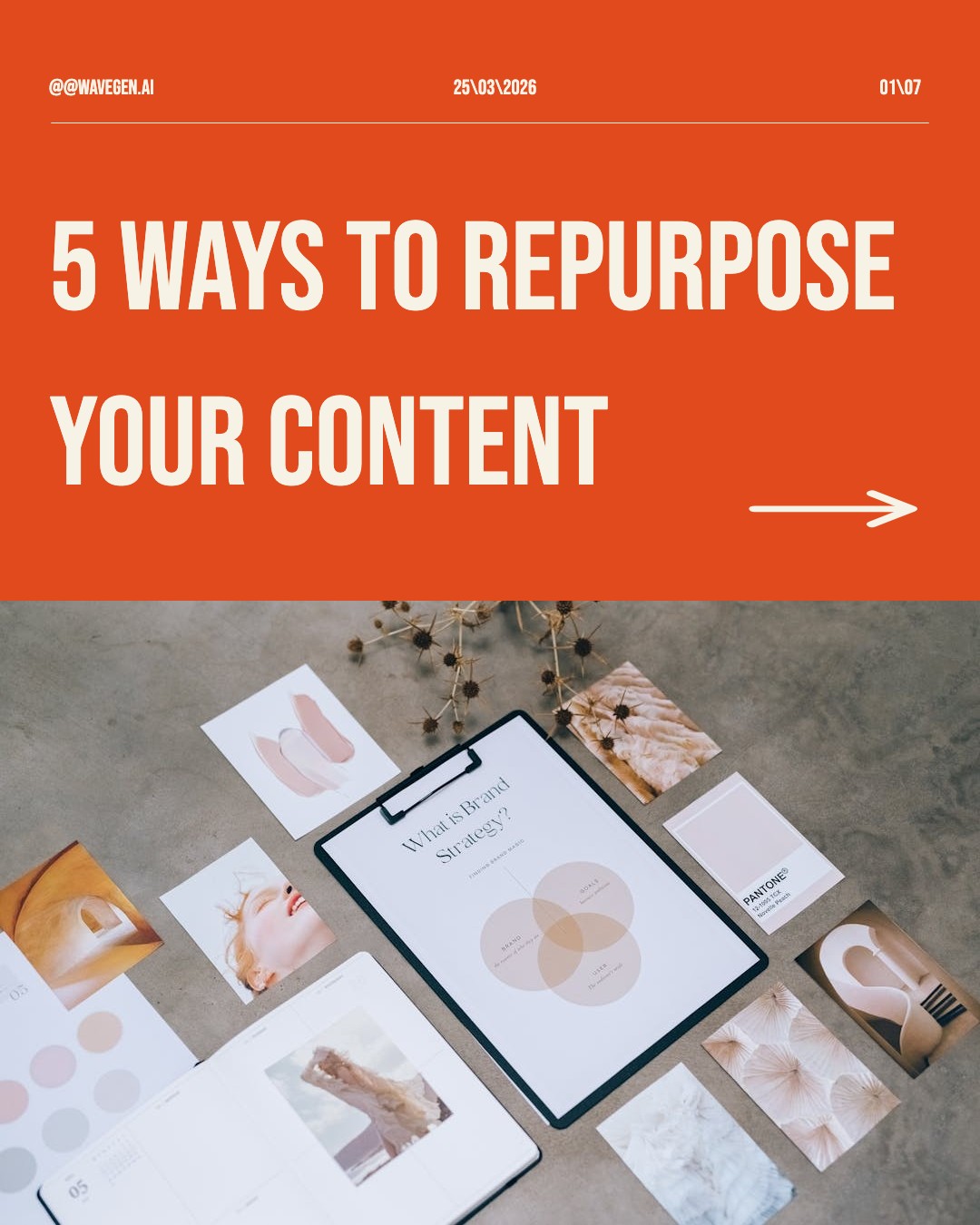





How to Use These Templates
It only takes 4 steps to go from template to published post.
1. Browse Templates
Scroll through our collection of professionally designed carousel templates above.
2. Copy & Edit
Click a template to save it to your WaveGen account and start editing right away.
3. Customize
Change the text, swap images, and apply your brand colors and fonts to make it yours.
4. Share
Download your carousel as a PDF or schedule it directly to LinkedIn, Instagram, TikTok, or Pinterest.
Paste a URL and let AI write your carousel in seconds.
Try WaveGen FreeWhy LinkedIn Carousels Work
LinkedIn document posts are one of the highest-performing content formats on the platform. Here is why they outperform text and single-image posts:
Professional credibility
LinkedIn carousels position you as a thought leader. Multi-slide document posts showcase expertise in a way single posts can't.
Algorithm boost
LinkedIn's algorithm favors document posts because they increase dwell time. More time on your content means more impressions.
Lead generation
Carousels drive 3x more engagement than text posts on LinkedIn. Higher engagement means more profile visits and connection requests.
Repurpose content
Turn blog posts, presentations, and reports into LinkedIn carousels. One piece of content becomes multiple high-performing posts.
Pro tip: Mix educational carousels with personal stories. LinkedIn's audience engages most with content that combines professional insights with authentic experiences.
How to Choose the Right Carousel Template
Picking the right template is the fastest way to make your carousel look polished without spending hours in a design tool. Here is what to consider before you hit export.
Match the template to your content type
Educational content (tips, how-tos, frameworks) works best with clean, text-heavy layouts that give each slide a clear headline and supporting copy. Story-driven content (case studies, lessons learned) benefits from templates with larger image areas and minimal text overlays. Choose a template whose slide structure mirrors the information you want to share.
For posting at the right time, check our best time to post on LinkedIn guide to maximize your reach after you design your slides.
Keep your brand consistent
Stick to one or two templates across your posts so your audience recognizes your content at a glance. Consistency in color palette, font pairing, and layout creates a professional presence that builds trust and authority on LinkedIn.
For full brand-kit customization — including your own colors, logo, and fonts — try the LinkedIn carousel generator, which lets you save brand presets and generate content with AI.
Think about slide count
Short carousels (5-8 slides) work well for quick tips or announcements. Longer carousels (10-15 slides) are better for in-depth guides, case studies, or framework breakdowns. The template you pick should have enough breathing room per slide so the text stays readable — aim for no more than 40-50 words per slide for maximum impact.
Optimize for the LinkedIn feed
All templates on this page use the recommended 1080 x 1350 px (4:5) format, which occupies the maximum vertical space in the feed. LinkedIn displays carousels as document posts (PDF), so your export will be ready to upload directly. Need a refresher on dimensions? See our LinkedIn carousel size guide or the broader LinkedIn post size reference.
LinkedIn Carousel Ideas That Work
Not sure what to post? Here are proven carousel formats that drive engagement on LinkedIn. You can build any of these with our templates above, or use the AI LinkedIn carousel generator to generate the content automatically.
Industry Insights
Share data, trends, or analysis from your field.
"5 SaaS Metrics Every Founder Should Track in 2026"
How-To Guides
Break down professional processes step by step.
"How to Build a Content Calendar in 7 Steps"
Case Studies
Show results and learnings from real projects.
"How We Grew Organic Traffic 3x in 6 Months"
Leadership Lessons
Share career advice and professional wisdom.
"10 Things I Learned Managing Remote Teams"
Tool Recommendations
Curate your favorite tools, books, or resources.
"8 Free Tools Every Marketer Needs"
Company Culture
Showcase team wins, values, or behind-the-scenes.
"How We Run Our Weekly All-Hands Meeting"
Carousel Template Design Tips
Great content deserves great presentation. Use these visual best practices to make every slide in your LinkedIn carousel template stand out.
Lead with a scroll-stopping cover slide
Your first slide is what appears in the feed — it needs to earn the swipe. Use a bold headline (5-8 words), a contrasting background, and a clear topic promise. Avoid generic titles like "Tips" — instead try "5 Mistakes Killing Your LinkedIn Reach." The cover should make your audience pause mid-scroll and want to see what comes next.
Use professional, readable typography
LinkedIn's audience skews professional, so choose clean, readable fonts that convey authority. Stick to a minimum of 24 px for body text and 36 px or larger for headlines. Dark text on a light background ensures legibility across devices. Limit yourself to two fonts per carousel: one for headings, one for body copy. Since LinkedIn carousels export as PDF, your fonts will render crisply at any zoom level.
Maintain visual flow between slides
Each slide should feel like part of a sequence, not a standalone graphic. Keep margins, text alignment, and color accents consistent across every slide. Use numbering ("1/7", "Step 3") or a progress indicator so viewers know how far along they are. That sense of progression encourages them to keep swiping through your document post.
End with a strong call-to-action
Your last slide is the most important after the cover. Tell viewers exactly what to do: "Follow for more insights," "Comment your biggest takeaway," or "Repost if this was helpful." Adding a CTA doubles the chance of engagement, which is the signal LinkedIn's algorithm weights most heavily when deciding how widely to distribute your post.
Want to skip the design work entirely? Our AI LinkedIn carousel generator turns any URL, article, or topic into a fully designed carousel in seconds — complete with brand colors, images, and optimized copy. Export as PDF for LinkedIn.
Turn any blog post, article, or idea into a carousel — automatically.
Try WaveGen FreeLinkedIn Carousel Best Practices
Do's
Hook with a bold first slide that promises clear value
Use data and stats to back up your points
Keep text readable — LinkedIn users read more than on other platforms
End with a question or CTA to drive comments
Use consistent professional branding across all slides
Include your name or handle on slides for attribution
Don'ts
Don't use overly casual language — match LinkedIn's professional tone
Don't make slides too busy with competing visuals
Don't forget a CTA on your final slide
Don't use tiny fonts that are hard to read on mobile
Don't skip proofreading — typos undermine credibility
Don't use clickbait titles that don't deliver on the promise
LinkedIn Carousel FAQs
Ready to Level Up Your Content?
Turn any blog post, article, or idea into scroll-stopping carousels with AI. Add your branding, schedule posts, and create content in batch — all with WaveGen.