August 1, 2026
17 min read
Best Video Editor for Social Media: Top Picks for 2026
Find the best video editor for social media in 2026. Compare features, pricing, and ease of use to create scroll-stopping content that grows your audience.
Stop scrolling and start creating. If you're juggling TikTok, Reels, YouTube Shorts, LinkedIn clips, and a never-ending queue of captions, the bottleneck usually isn't ideas, it's editing time. That's why the best video editor for social media is less about having every possible feature and more about matching the tool to the job you need done today.
Video has become a core marketing format, with 85% of companies treating it as a key marketing tool and video posts getting 48% more hits than posts without video, according to one industry statistics roundup (video editing statistics roundup). Another guide says video now accounts for 80% of all online content consumption, while Instagram Reels take 50% of the time users spend on Instagram (social video workload and platform usage guide). That's the reality behind this list, social teams need tools that help them publish fast, stay on brand, and keep repurposing without burning out.
If you already know your main job, the right pick gets obvious fast. Need to repurpose a long transcript into a week of posts? Need a browser editor for captions and quick resizing? Need a full pro suite for client work? This guide moves straight to the tools.
For a useful reference on formats while you choose, keep this guide handy, social media video specs 2026.
Table of Contents
- 1. WaveGen.ai
- 2. CapCut
- 3. Adobe Premiere Pro
- 4. DaVinci Resolve
- 6. VEED
- 6. VEED
- 7. Canva Video Editor
- 8. Microsoft Clipchamp
- 9. Kapwing
- 10. InVideo
- Top 10 Social Media Video Editors, Feature Comparison
- The Right Editor Is a Workflow, Not Just a Tool
1. WaveGen.ai
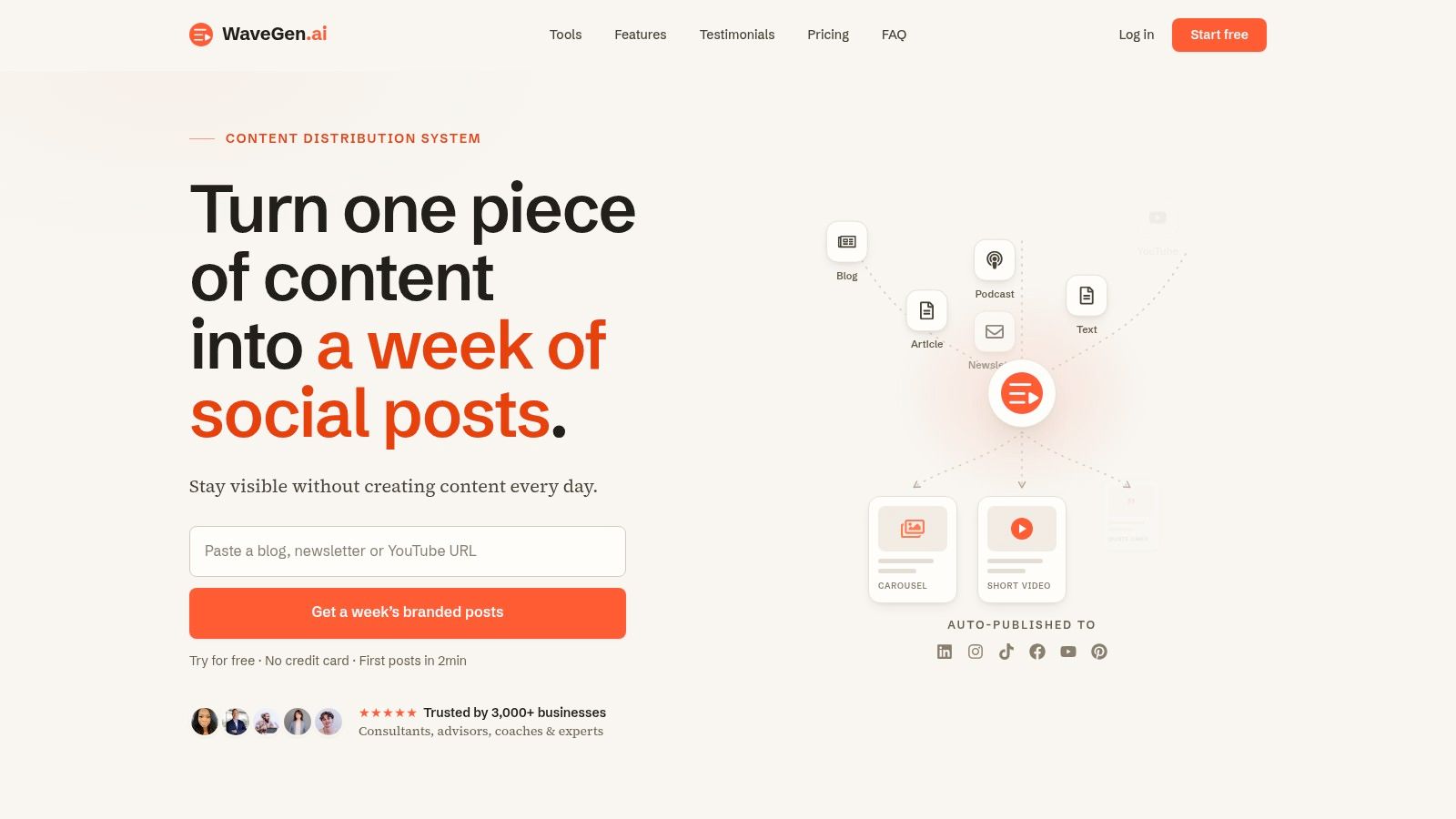
WaveGen.ai is the tool I'd hand to anyone who already has long-form content and needs social output yesterday. It takes an article, newsletter, podcast script, or YouTube transcript and turns it into carousels, short videos, quote cards, and captions that are ready for social publishing. That makes it especially strong for consultants, educators, agencies, and creators who don't want to start from a blank timeline every time.
The advantage is workflow fit. WaveGen starts from your own writing, applies your brand kit once, then keeps the colors, fonts, logo, and voice consistent across every asset. That matters when you're producing for multiple platforms, because the usual pain point isn't editing one video, it's turning one source into a week of assets without losing the thread.
Practical rule: If your content starts as text, audio, or a transcript, a repurposing system usually beats a general-purpose editor for speed.
WaveGen also gives you a visual editor before publishing, so you can adjust text, images, and tone without fighting a complicated timeline. It publishes directly to Instagram, TikTok, LinkedIn, YouTube, and Facebook, with Pinterest on the roadmap, and it adds scheduling, crossposting, and an autopilot mode that monitors RSS feeds. The company says it's trusted by 3,000+ businesses, with 10,000+ posts generated, and that active users save about 20 hours every week.
Pricing is built for different stages, from a free trial with 10 free posts and one social connection, to paid tiers at $20, $35, and $70 per month billed annually, plus Business and Enterprise options. Generated-post credits roll over up to 3x your monthly allowance, and WaveGen says you keep ownership of the content you create. If your team lives on repeatable publishing, that's a serious operational advantage.
Where WaveGen fits best
WaveGen is strongest when the job is repurposing, not hand-building every post. If you want a tool that keeps the brand voice intact and pushes content into a multi-platform pipeline, it feels more like a distribution system than a single editor. For a practical walkthrough on short-form editing patterns, see how to edit a TikTok video with WaveGen.
Pros
- Fast repurposing: Turns one long-form source into multiple publish-ready assets in minutes.
- Brand consistency: Brand kit controls keep posts aligned without manual design work.
- End-to-end workflow: Captioning, hashtags, resizing, scheduling, and publishing live in one pipeline.
- Editorial control: You still tweak text, images, and tone before posts go out.
- Built for volume: Credit rollover and team-friendly plans support steady publishing.
Cons
- Quota limits on lower plans: Heavier publishers may outgrow the starter tiers.
- Not built for pure manual design: It's best for repurposing your content, not crafting every asset from scratch.
- Some integrations are still rolling out: Pinterest isn't fully there yet.
Website: WaveGen.ai
2. CapCut
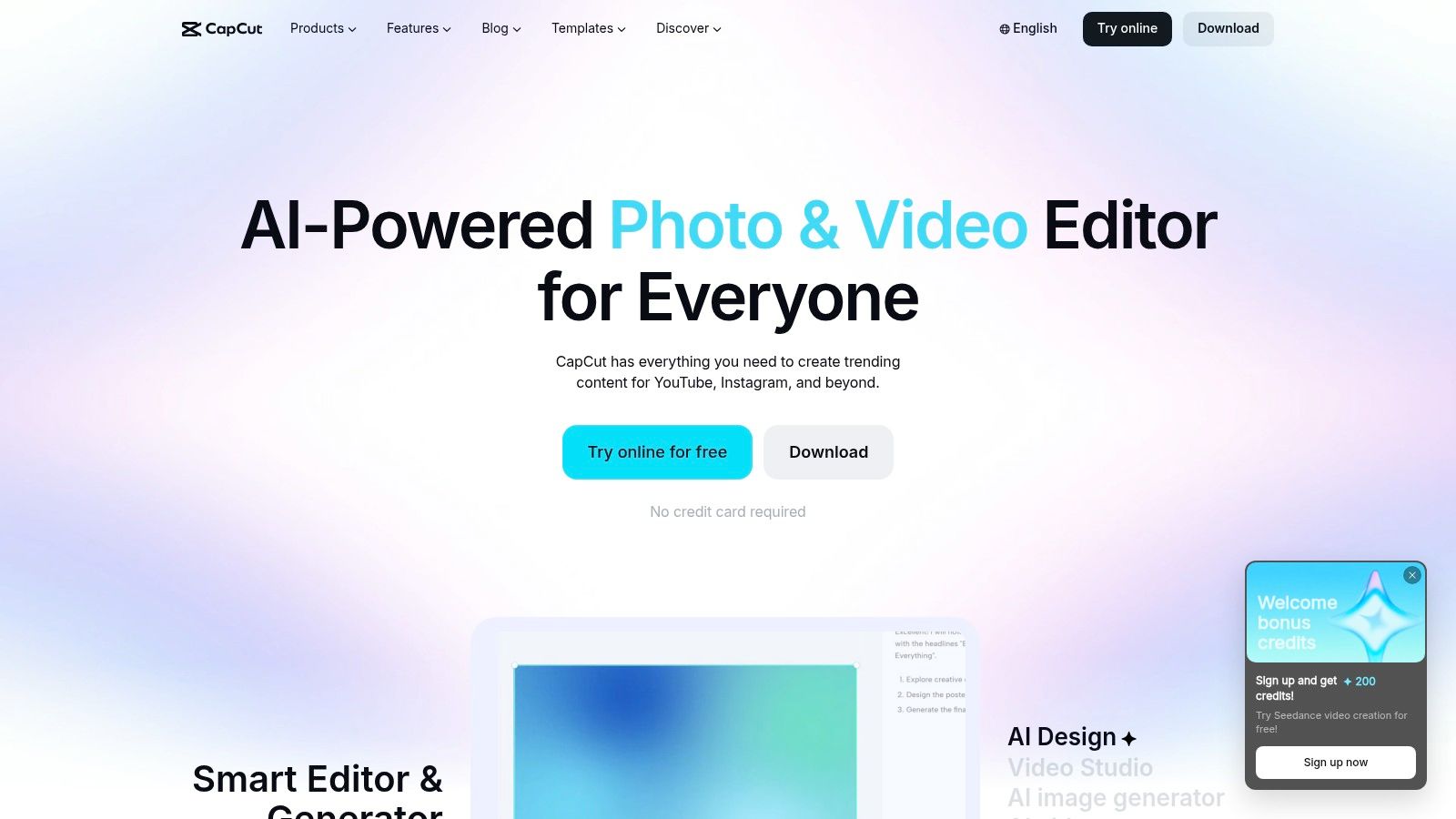
CapCut is the editor I'd pick for fast, trend-aware social output. It's built for people who need to move quickly, especially creators making short-form videos for TikTok and Instagram Reels. The biggest reason it stays popular is simple, it removes a lot of friction from the editing process.
It runs across web, desktop, iOS, and Android, with cloud project sync across devices. That makes it easy to start a draft on mobile, clean it up on desktop, and keep moving without rebuilding the project. The template library is huge, with 6,000+ social templates, and the platform-ready aspect ratios make it feel native to short-form publishing instead of adapted from long-form editing.
A lot of social teams like CapCut because the defaults already match the workload. Auto subtitles, keyframing, green screen, stabilization, and trendy effects are all in the mix, so you can ship a polished clip without a steep learning curve. For quick-turn content, that's what matters more than a sprawling toolset.
One thing to watch is the paywall creep around certain effects, plus regional pricing differences. The advanced color and audio tools are also basic compared with pro desktop editors, so CapCut is not the place I'd go for a detailed finish on a client spot or a color-sensitive brand piece. It's a speed tool first.
For marketers who need to publish often, CapCut works best when the creative brief is short and the deadline is even shorter. It's especially good for product clips, social ads, reaction edits, and trend-driven content where the finish matters, but the timeline doesn't need to become a production suite.
If the edit has to happen quickly and the content needs to look native to social, CapCut gets out of the way fast.
Website: CapCut
3. Adobe Premiere Pro
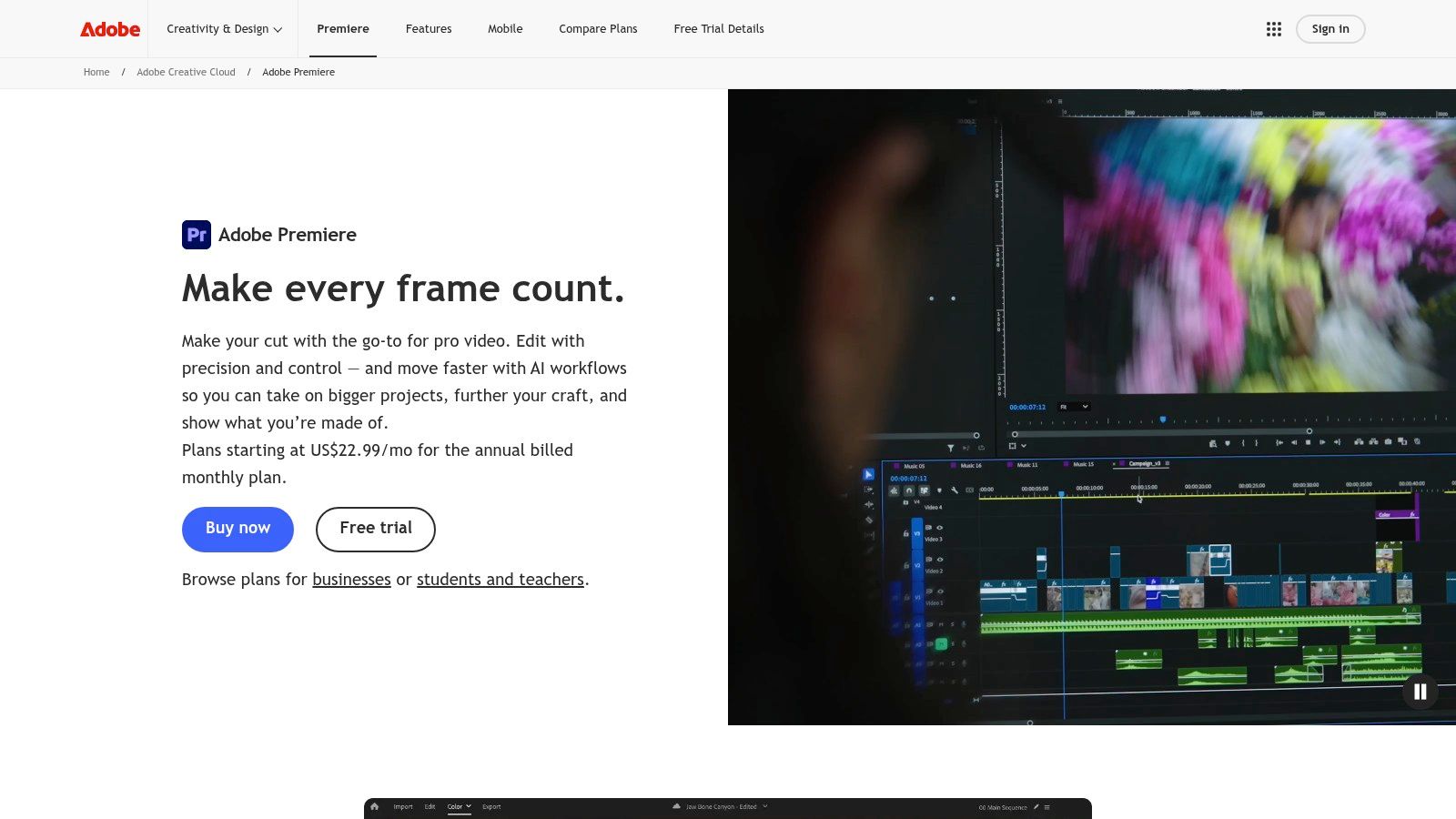
Adobe Premiere Pro is still the answer when the job needs deep control, not just speed. It's the tool for agencies, in-house teams, and production-heavy marketers who need a real non-linear editor with professional color, audio, and captioning tools. If the social team also handles YouTube, brand films, paid media, or client review loops, Premiere Pro fits naturally into that broader workflow.
The biggest reason it stays relevant for social work is the ecosystem around it. Adobe Express Premium templates can handle quick social content, Frame.io supports review and approval, and Creative Cloud lets assets move across desktop and mobile. That means a social post doesn't have to live in isolation, it can sit inside a larger content pipeline where design, review, and finishing all connect.
When Premiere Pro makes sense
Premiere Pro is strongest when your content needs to be both publishable and polished. I've seen it used best for repurposing campaign footage, trimming interviews into short clips, and building paid social variants that still need a precise finish. It's also the better choice when you're doing heavier motion graphics round-tripping through After Effects or bringing in Photoshop assets.
For social managers, the trade-off is clear. Premiere Pro gives you more control, but it asks for more skill and more time. If your team wants to move fast with simple templates, it can feel like overkill. If your team needs scale plus professional standards, it's hard to beat.
For a broader planning lens, this video content strategy guide helps connect editing choices to distribution goals. That's where Premiere Pro shines, not as a shortcut, but as the backbone of a more serious content engine.
Best for
- Agencies with mixed deliverables
- Teams using Adobe apps already
- Projects that need team review and approval
- High-control finishing for social and brand video
Website: Adobe Premiere Pro
4. DaVinci Resolve
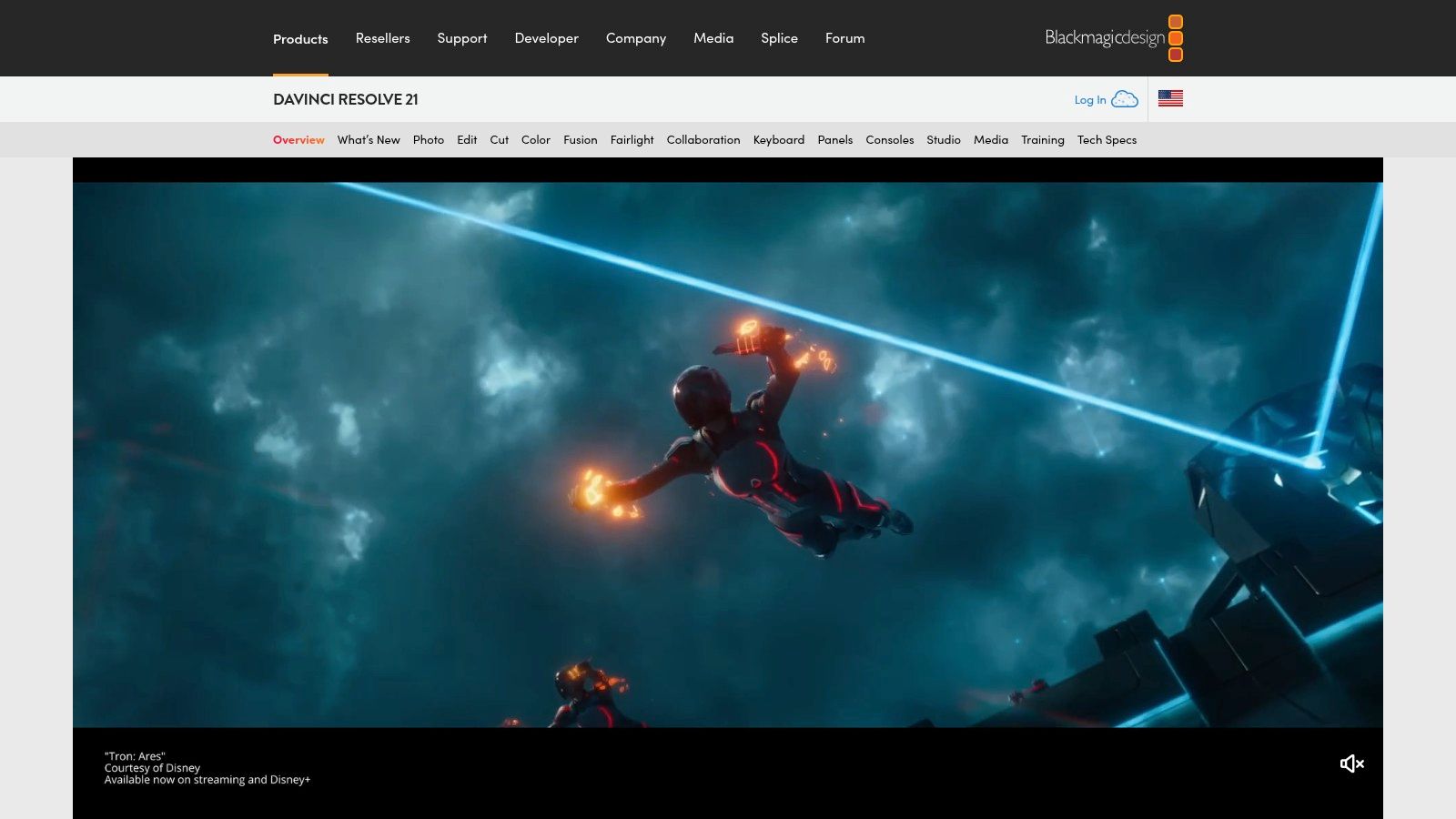
DaVinci Resolve is the pro choice when color and audio matter as much as speed. It's the editor I'd recommend for creators or teams who want a serious suite without committing to a monthly subscription. The free version is unusually capable, and the Studio license is a one-time purchase, which makes it attractive for teams that don't want recurring software cost on top of production work.
Resolve brings together Edit, Color, Fairlight audio, and Fusion VFX in one place. That matters for social content only if you're producing more than basic cuts, because it gives you room to make polished deliverables from the same source. If you're cutting interviews, brand videos, product explainers, or higher-end vertical clips, the color tools alone can make your content feel more deliberate.
The trade-off is the learning curve. Resolve asks for more patience than browser editors or template-first tools, and it expects more from your hardware too. If your team wants quick captions and one-click resizing, this is not the fastest path. If you care about grading, sound, and a clean final image, it's a serious platform.
Blackmagic Cloud collaboration also makes it more team-friendly than many people expect, especially for distributed workflows. Still, I'd treat Resolve as the finishing house, not the daily social draft tool. It's a great answer to the question, “What if our social content needs to look like real production?”
Website: DaVinci Resolve
6. VEED
VEED is the browser editor I'd reach for when a team needs speed, collaboration, and localization without installing software. It fits quick social exports, simple brandable templates, and workflows where subtitles matter as much as the cut itself. That makes it a practical fit for marketers publishing across multiple platforms or regions.
Its core strengths are auto-subtitles, translation, one-click resize and compression, recorder tools, teleprompter support, and AI helpers like clip generation, eye-contact correction, and audio cleanup. In practice, that lets a social manager move from recording to a publishable clip without leaving the browser. For teams that need to get a lot done with minimal setup, that simplicity matters.
One of VEED's biggest advantages is adoption. No installs means fewer IT issues and less friction for cross-functional teams. A copywriter, marketer, and designer can all work in the same browser-based setup without needing the same local software or editing experience.
The trade-off is control and cost. The more advanced AI features can sit behind higher-tier plans or credits, and pricing can vary by region. I'd also avoid treating it like a full replacement for a pro desktop suite. It's a speed and accessibility tool, not the answer for heavy motion work or complex finishing. To compare it with other options, you can compare TikTok editors by business goals.
For teams building a repeatable short-form workflow, VEED makes the most sense when the job is fast captions, quick localization, and clean exports. For anything that depends on heavy visual layering, advanced color work, or frame-by-frame control, a desktop editor will still do more. If your social content mostly needs to move from rough recording to polished post with as little handoff as possible, VEED stays useful.
Website: VEED
6. VEED
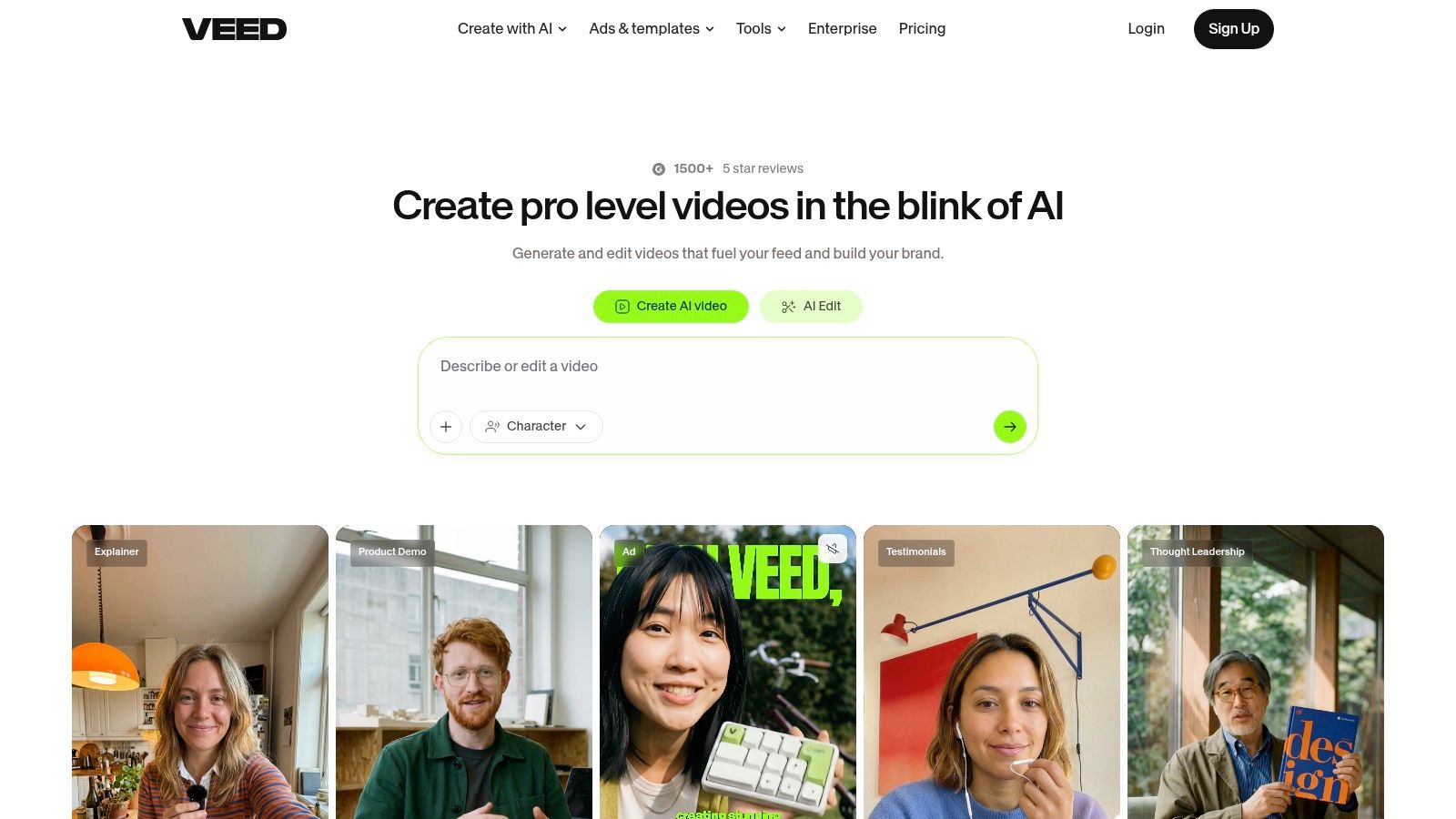
VEED is the browser editor I'd choose for teams that need speed, collaboration, and localization without installing software. It's made for quick social exports, simple brandable templates, and workflows where subtitles matter as much as the cut itself. That makes it a solid fit for marketers publishing across multiple platforms or regions.
The headline features are auto-subtitles, translation, one-click resize and compression, recorder tools, teleprompter support, and a growing set of AI helpers like clip generation, eye-contact correction, and audio cleanup. In practice, that means a social manager can move from recording to publishable clip without leaving the browser. For teams that need to get a lot done with minimal setup, that simplicity counts.
One of VEED's biggest strengths is adoption. No installs means fewer IT headaches and less friction for cross-functional teams. A copywriter, marketer, and designer can all get into the same browser-based workflow without needing the same local setup or editing experience.
The limitation is that the more advanced AI features can sit behind higher-tier plans or credits, and pricing can vary by region. I'd also avoid treating it like a full replacement for a pro desktop suite. It's a speed and accessibility tool, not the answer for heavy motion work or complex finishing.
For teams doing a lot of social localization, VEED makes the subtitle and translation workflow much easier than stitching together separate tools. That alone can make it the right editor for fast-moving brand teams.
Website: VEED
7. Canva Video Editor
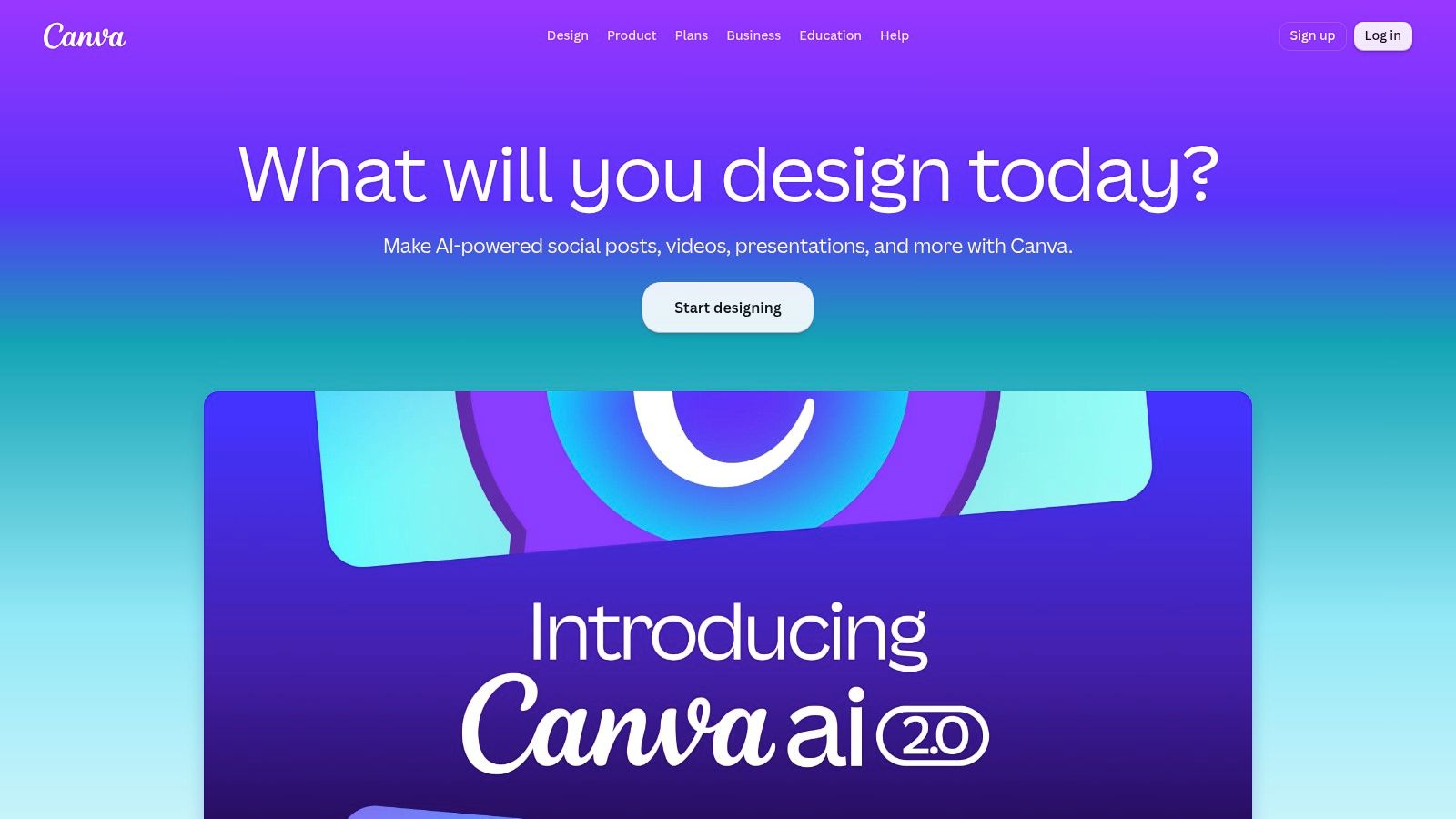
Canva's video editor is the obvious choice for teams already living in the design workflow. It's not the most advanced editor on this list, but it's one of the easiest ways to keep brand consistency across social graphics, carousels, and short videos. For marketers who think in templates, it removes a lot of friction.
The strength is in the combination of Brand Kit, Magic Resize and Switch, and the huge template and asset library. That makes it particularly useful for turning a design concept into a social video without rebuilding the look from scratch. If your content team includes non-editors, Canva is often the fastest shared language they can use.
Where Canva wins
Canva is strongest for quick brand-safe content, simple animated posts, and social assets that need to look coordinated across channels. I've found it especially useful for teams making quote videos, product highlights, event promos, and short explainer clips where clean presentation matters more than advanced edits. It also works well across web, desktop, and mobile, which keeps collaboration easy.
The trade-off is obvious. Advanced audio work, motion control, and precision editing are limited compared with pro NLEs. Some resizing, export, and premium asset features also sit behind paid plans. If you need deep timeline work, use something else. If you need fast, clean, on-brand social content, Canva gets the job done.
Website: Canva
8. Microsoft Clipchamp
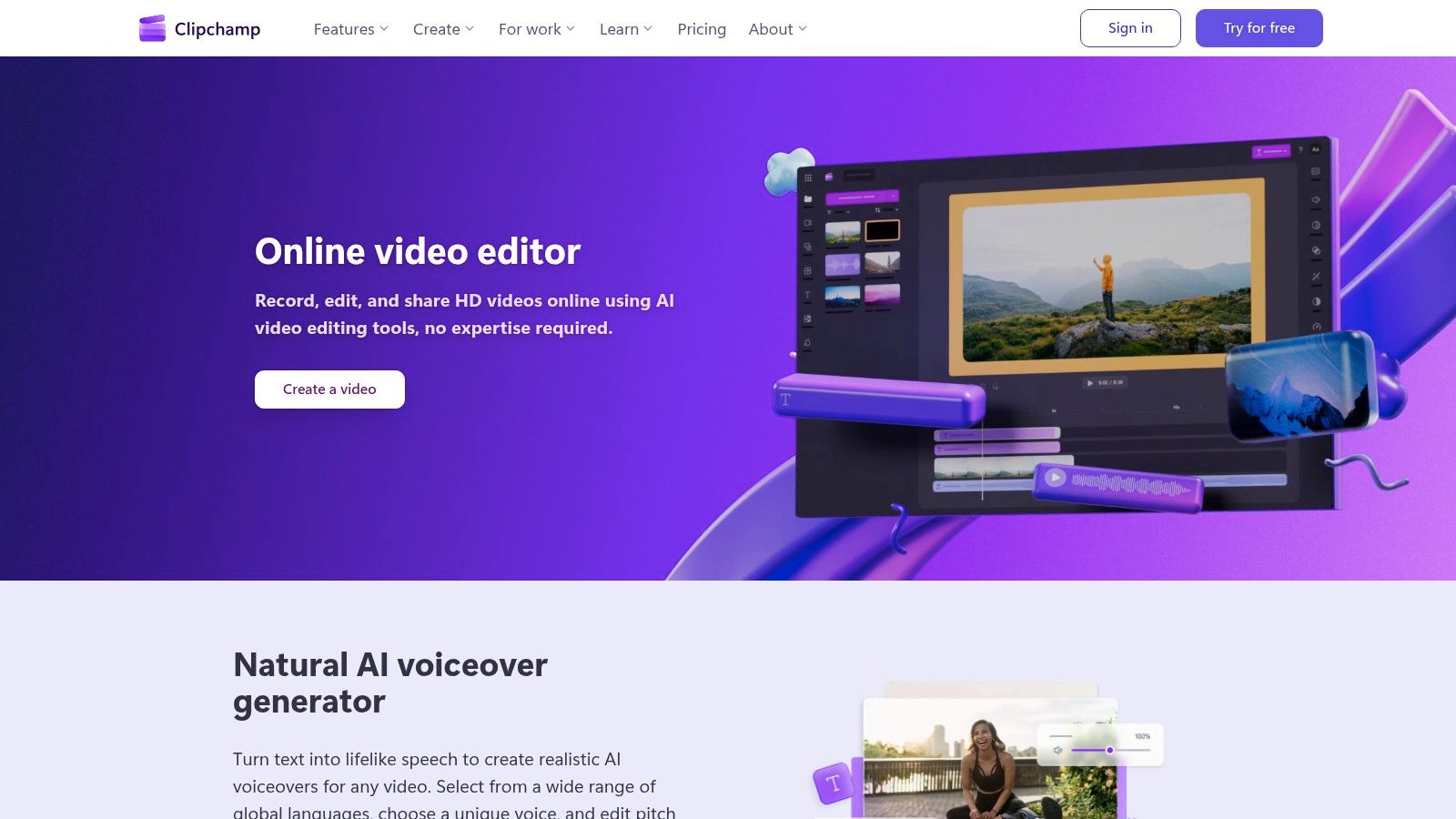
Clipchamp is the practical choice for teams that want a lightweight editor with a low learning curve. It's especially attractive for Windows-first organizations and businesses already tied into Microsoft 365. The interface is simple, the workflow is approachable, and the output is good enough for a lot of everyday social tasks.
The standout advantage is that free users can export in 1080p, while the editor also includes brand kits, stock media, text-to-speech, and silence removal. That gives beginners and internal teams a lot of useful functionality without requiring a heavyweight editing habit. If your goal is to create quick social updates, internal announcements, or straightforward promo videos, Clipchamp is easy to adopt.
It also plays nicely with the Microsoft ecosystem, including OneDrive and SharePoint, which is useful for organizations already storing assets there. In that kind of environment, the editor becomes less of a standalone app and more of a sensible extension of existing workflows.
The limitations are the usual ones for light editors. Advanced grading and effects aren't the point here, and some premium features depend on Microsoft 365 subscriptions. I'd use Clipchamp when ease of access matters more than fine control. For many teams, that trade-off is exactly right.
Website: Microsoft Clipchamp
9. Kapwing
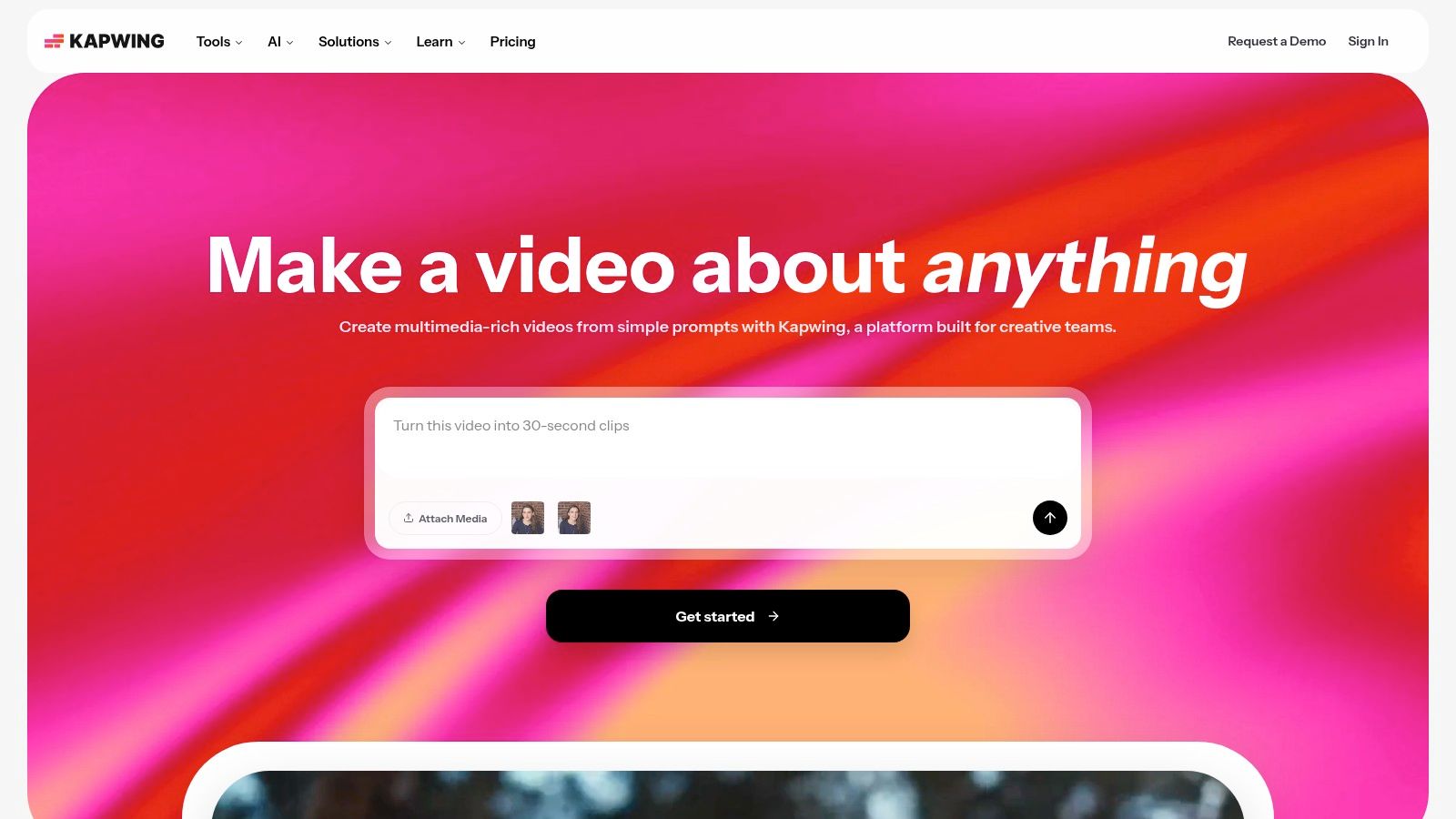
Kapwing makes sense for teams that need a browser-based collaborative editor with clear social workflow support. It's built for marketers and agencies that want quick resizing, auto-subtitles, and shared workspaces without installing anything. If you're managing a lot of short-form output across multiple stakeholders, that browser-first setup helps.
The feature set is practical rather than flashy. Templates, Smart Cut, Clean Audio, text-to-speech, document-to-video tools, and platform-ready resizing cover the most common social tasks. Paid tiers also provide 4K exports, which gives the tool a little more room as projects scale. The plan structure is clear, so the differences between free and paid use cases are easier to understand than in some competitors.
Kapwing's real value is collaboration speed. It works well when people need to review, tweak, and approve content in one shared place. For agencies, that can reduce back-and-forth and keep the publishing queue moving. For longer or more complex edits, though, browser performance can feel slower than a desktop NLE.
The free plan's watermark and limits are the main constraint. That's fine for testing, but not great if you're trying to build a polished, repeatable brand workflow. I'd put Kapwing in the same conversation as VEED when the priority is browser access plus social-team coordination.
Website: Kapwing
10. InVideo
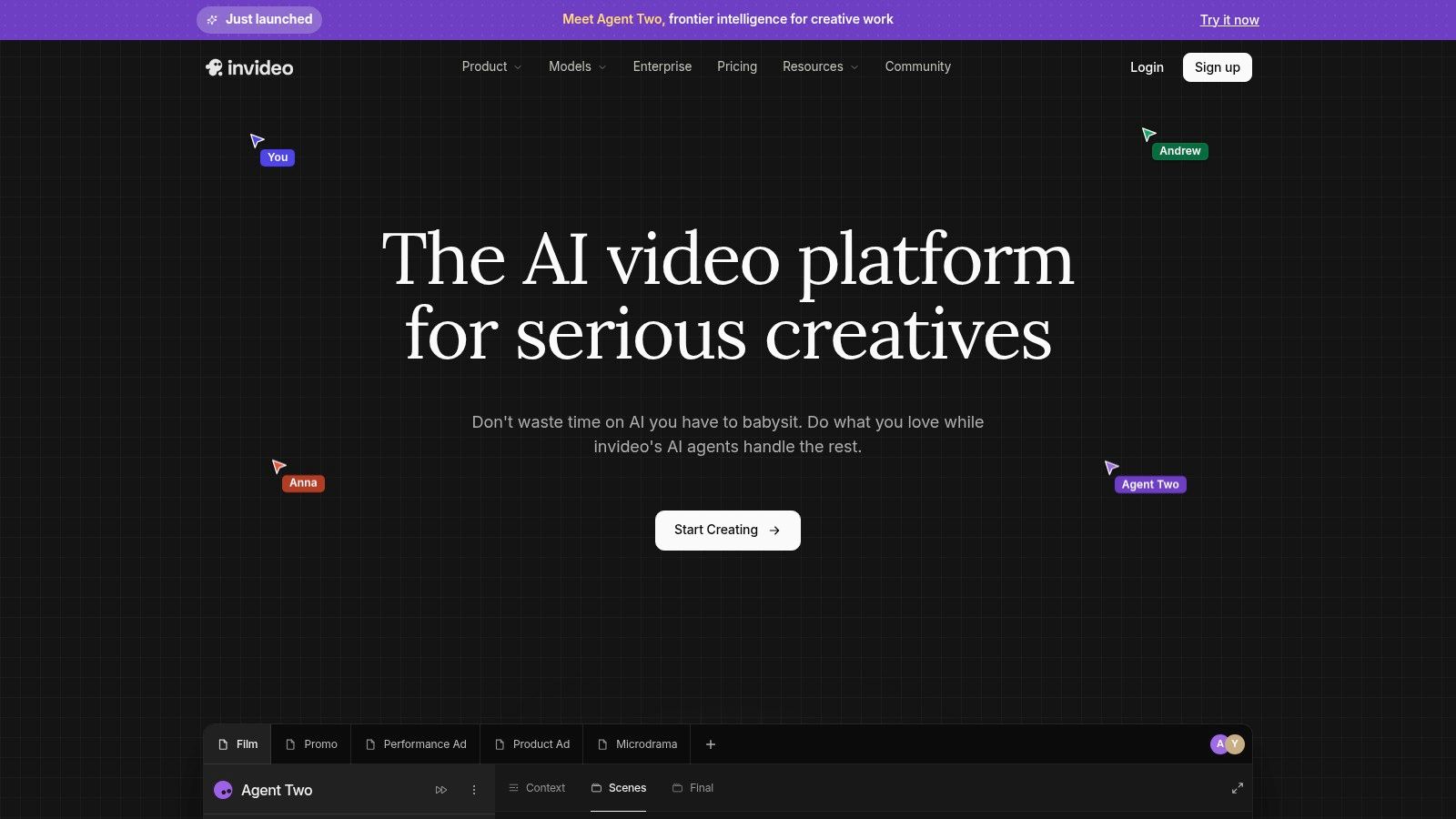
InVideo is a good fit when you want to generate social variations quickly and then refine them in a browser timeline. It combines AI video generation, clip generation, avatars, voice cloning, translation, subtitles, and a classic Studio editor for manual adjustments. That mix makes it useful for ad creative, content testing, and fast concepting.
The main appeal is speed at the ideation stage. If you need multiple social variants from one idea, InVideo can get you from prompt to draft faster than a manual-first editor. The access to premium stock on paid tiers is also useful when you need to assemble a clean, ready-to-share clip without hunting for assets elsewhere.
Where InVideo fits in a stack
InVideo works best as a production accelerator, not as the final authority on detail. It's helpful for teams making quick ad concepts, UGC-style creative, or social drafts that need fast iteration. The browser-based workflow is convenient, but it's less precise than a pro desktop suite when the project becomes layered or timing-sensitive.
The other thing to watch is cost control. Because AI generation is tied to credits, heavy use can increase spend faster than a standard subscription workflow. That makes InVideo a smart tool for bursts of creative output, but not always the cheapest long-term home for every social asset.
Website: InVideo
Top 10 Social Media Video Editors, Feature Comparison
| Product | Core Features & Unique Value (✨) | Ease & Quality (★) | Best For (👥) | Pricing / Value (💰) |
|---|---|---|---|---|
| 🏆 WaveGen.ai | ✨ Repurposes long‑form → carousels, short videos, quote cards; brand kit, visual editor, scheduling, autopilot RSS | ★★★★★, polished, editorial control | 👥 Creators, consultants, agencies, growth teams | 💰 Free trial; Starter $20/mo, Growth $35, Pro $70; Enterprise/custom |
| CapCut | ✨ Social‑first video editor: 6,000+ templates, auto‑captions, cloud sync | ★★★★☆, fast, trendy templates | 👥 Short‑form creators (TikTok/Reels) | 💰 Free / freemium; some paid effects |
| Adobe Premiere Pro | ✨ Full NLE + Express templates; Frame.io review, Creative Cloud ecosystem | ★★★★★, pro‑grade, steeper learning | 👥 Agencies, production teams, pros | 💰 Subscription (higher cost; team plans) |
| DaVinci Resolve | ✨ Edit/Color/Fairlight/Fusion; industry‑leading grading; free tier + Studio license | ★★★★★, cinematic, powerful tools | 👥 Colorists, studios, teams needing deep grading | 💰 Free tier; Studio perpetual license (paid) |
| Descript | ✨ Text‑based video editing, auto‑transcripts, Studio Sound, dubbing | ★★★★☆, ultra fast for talk content | 👥 Podcasters, educators, repurposers of long‑form | 💰 Freemium; plan limits & AI credits apply |
| VEED | ✨ Browser editor with auto‑subtitles, translation, AI clip helpers | ★★★★☆, quick, no‑install workflows | 👥 Social teams, localization & marketing | 💰 Freemium; higher tiers/credits for AI features |
| Canva (Video Editor) | ✨ Massive templates + Brand Kit, Magic Resize, simple timeline | ★★★★☆, very approachable for non‑designers | 👥 Small teams, marketers, creators needing speed | 💰 Freemium; premium assets/features on paid plans |
| Microsoft Clipchamp | ✨ Lightweight editor, 1080p free export, M365 integrations, brand kits | ★★★☆☆, easy, Windows‑friendly | 👥 Microsoft/Windows teams, beginners | 💰 Free core; some features tied to M365 |
| Kapwing | ✨ Collaborative browser editor: auto‑subtitles, templates, link imports | ★★★★☆, team collaboration focused | 👥 Agencies & distributed social teams | 💰 Freemium (watermark on free); paid tiers for higher res |
| InVideo | ✨ Template + AI video generation, avatars, translator, stock access | ★★★★☆, rapid ad/variant generation | 👥 Marketers, ad creators, rapid concepting | 💰 Credit‑based / subscription tiers; premium stock on paid plans |
The Right Editor Is a Workflow, Not Just a Tool
The best video editor for social media is the one that removes friction from your actual publishing process. If your team starts with a transcript, WaveGen.ai or Descript can turn that source into usable social output fast. If you need trend-aware short-form editing, CapCut is hard to ignore. If your work needs heavier finishing, Premiere Pro or DaVinci Resolve gives you a deeper control layer.
That workflow-first mindset matters more now because social video is no longer a side task. It's a core marketing output, and the tools that win are the ones that help you turn one source into many platform-ready assets without starting over every time. That's why browser editors, AI repurposing tools, and pro desktop suites all have a place. They just solve different jobs.
A lot of teams make the mistake of buying for feature count instead of production fit. They end up with an editor that looks impressive and still slows the team down. The better question is simple, how do you publish today, what takes the most time, and which tool removes that bottleneck first?
For some teams, the answer is a full NLE. For others, it's a lightweight browser editor. For a lot of brands, it's a repurposing system that turns one article, newsletter, or podcast into a week of social content. That's where the edge lives.
If your team is tired of rebuilding social content from scratch, WaveGen.ai can turn your articles, newsletters, and transcripts into branded carousels, short videos, and captions in minutes. It's built for the exact workflow this guide is about, getting from one source to consistent, publish-ready social assets fast.
best video editor for social media
social media video editor
video editing software
tiktok video editor
instagram video editor
Turn this kind of writing into a week of social content.
Paste a blog post, newsletter, or rough draft — WaveGen turns it into publish-ready carousels, captions, and slideshows for every channel.
No credit card · First posts in 2min